The left menu
It gives access to My space, Timeline, Calendar, Schedule, Volunteers, Resources and Preferences. The “Areas” section starts with “All areas” and “Org chart”, then lists each area where you have an appointment.
You are appointed to one or more areas for a period. The organizer workspace shows your tasks, their due dates and the how-to sheets that explain how to carry them out.
This user guide describes the screens open to anyone with an appointment. If you administer an activity or the organization, see the matching user guide for the “Manage the activity” and “Manage the organization” groups of the menu.
The workspace does not ask for a password. You enter your email address, you receive a six-digit code that is valid for ten minutes, and you type it into the sign-in screen. The email also contains a link, which signs you in directly when you open it in the tab where you requested the code.
Only people invited by an admin can sign in. If your account does not belong to any open organization, the screen invites you to request a new invitation.
It gives access to My space, Timeline, Calendar, Schedule, Volunteers, Resources and Preferences. The “Areas” section starts with “All areas” and “Org chart”, then lists each area where you have an appointment.
It holds the search (a task, a sheet, a person), the notification bell and your account menu. This menu also leads to the user guides. Its “Support” entry opens an email to your organization’s support address, when it has declared one. Otherwise, it opens the email or help page set up by your host, if there is one. It does not appear when neither exists. Its “Release notes” entry shows the Relaytour version number and lists the changes that concern your role. When another organization invites you, the menu shows the “1 pending invitation” entry and a badge on your initials: you accept or decline the invitation there. That organization reads nothing from your account and does not count you in its team until you agree.
The addresses start with the identifier of the displayed activity, for example /rencontres/retroplanning. The word “edition” becomes “season” or “term” depending on the kind of activity.
The home page gathers the tasks assigned to you, the tasks of your areas that nobody has taken, the progress of each of your areas and your contribution to the current period.
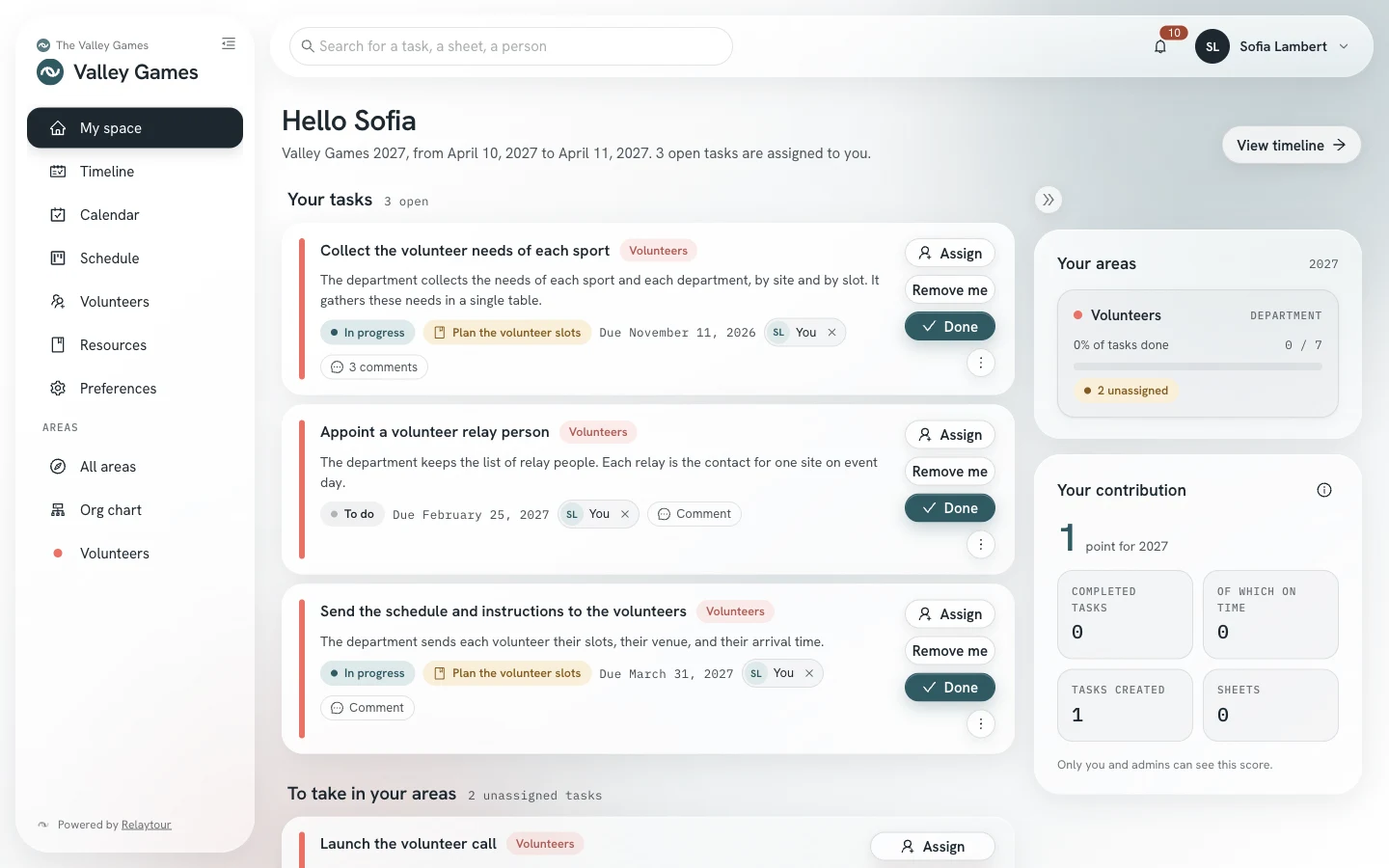
Only you and the admins can see your score. It counts the tasks you completed, those completed on time, the tasks you created and the sheets you wrote.
The timeline covers all areas of the activity. It groups the period’s tasks by month, from the nearest to the furthest. The filters limit the display to a group of areas, to open or overdue tasks, to your areas or to the tasks assigned to you.
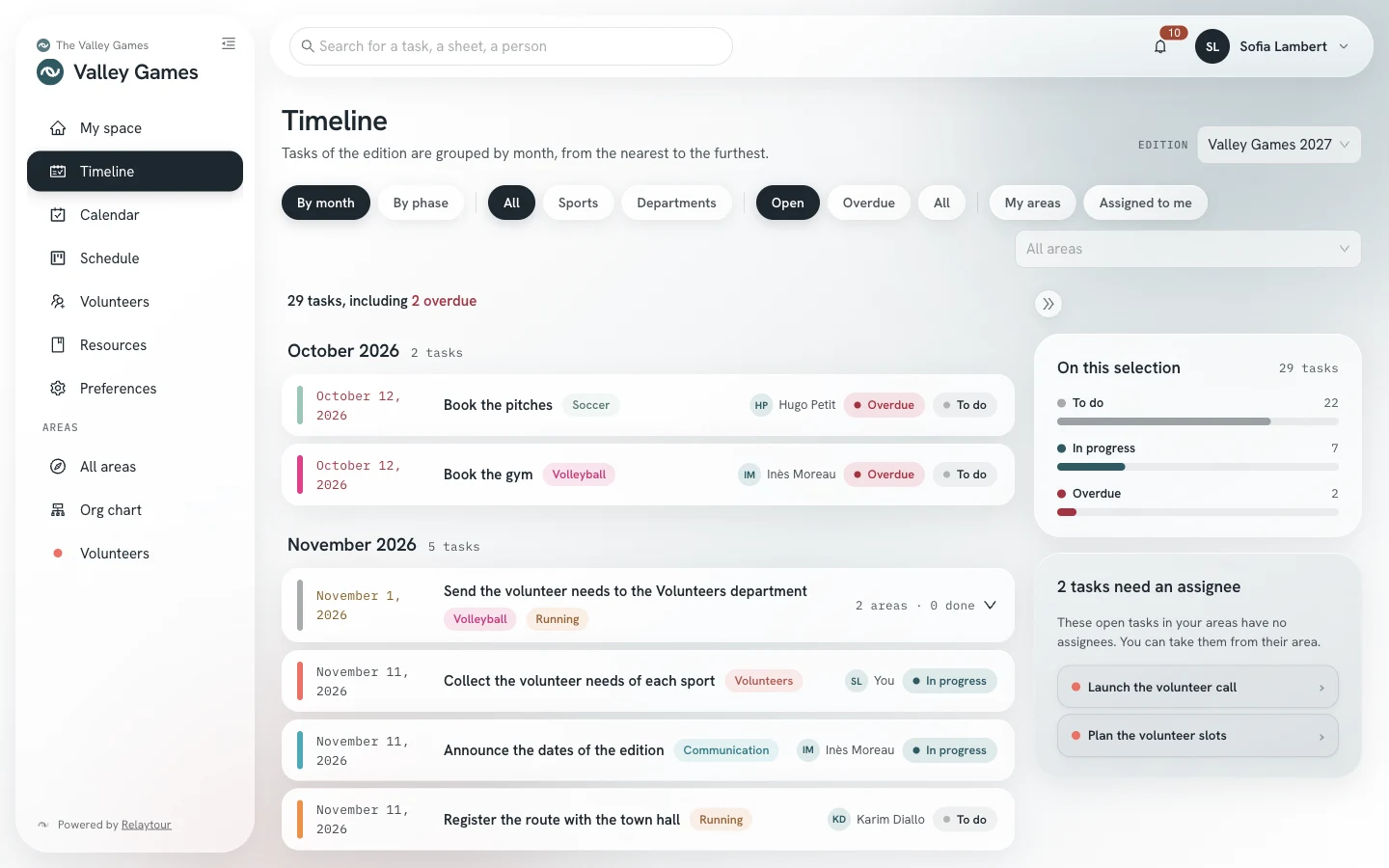
An activity divides its period into phases, for example “Preparation” or “Review”. A dated task is placed in a phase by its due date. The “By phase” grouping shows one section per phase, with its days. Within a phase, tasks are sorted by area. Tasks without a due date form a last section, “No due date”.
By month, the tasks that one area has shared with several others fit on one line when they fall on the same day. That line names each area, counts the completed tasks and expands.
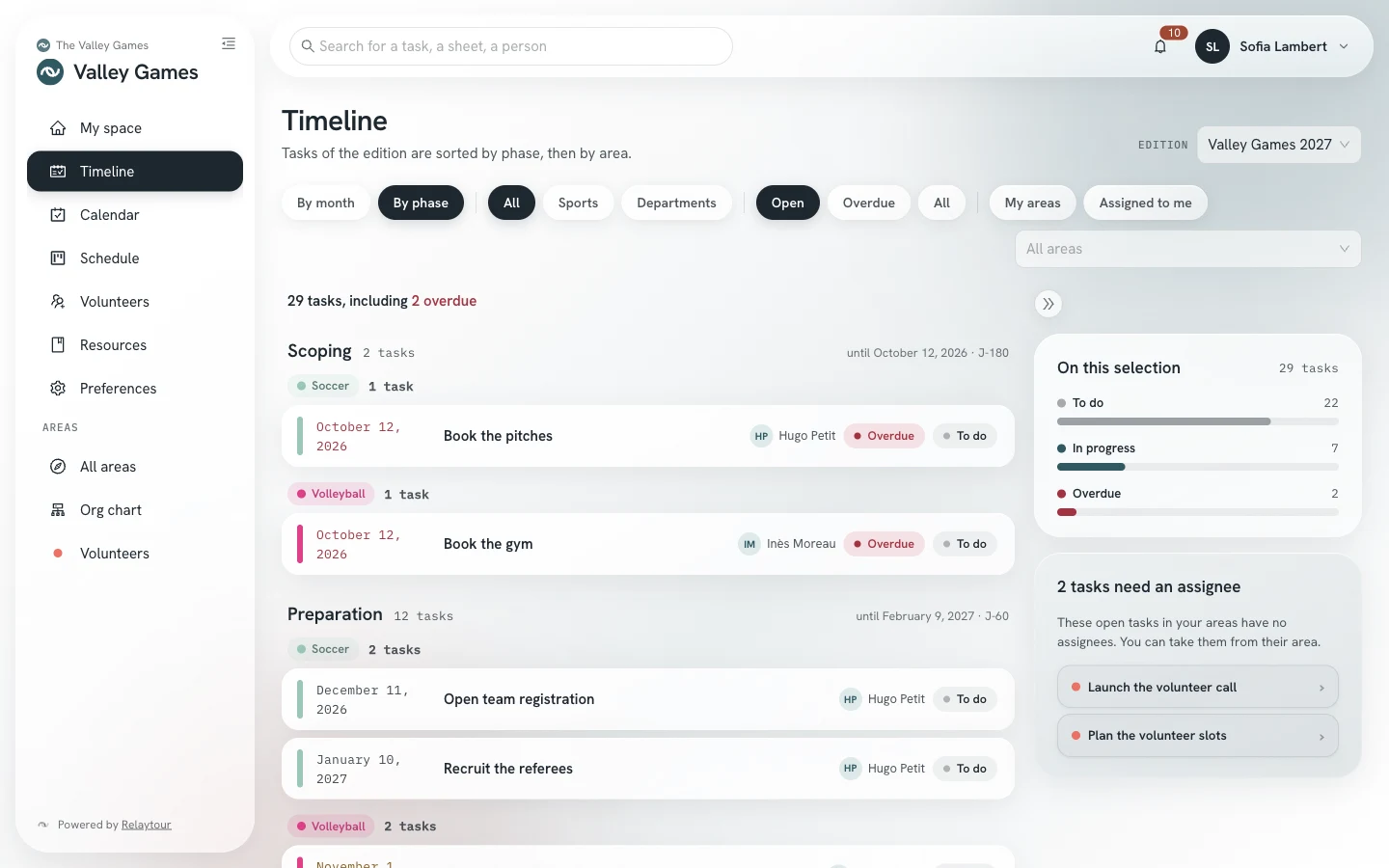
No action is taken here: a line leads to its area. You edit the task there if you have an appointment in that area. The right-hand panel flags the tasks of your areas that are still waiting for a person.
The calendar presents the landmarks of the period: its phases, its first and last days, and the key dates set by the activity admins. A key date marks a day that matters to the whole team, for example a file to submit or an assembly. The calendar also shows the meetings of the activity and of its areas, and the due dates of the tasks in your areas.
The list sorts these items by month, starting today. Each due date leads to its area. On a wide screen, the “Month” view shows a Monday-to-Sunday grid, with the current phase above it.
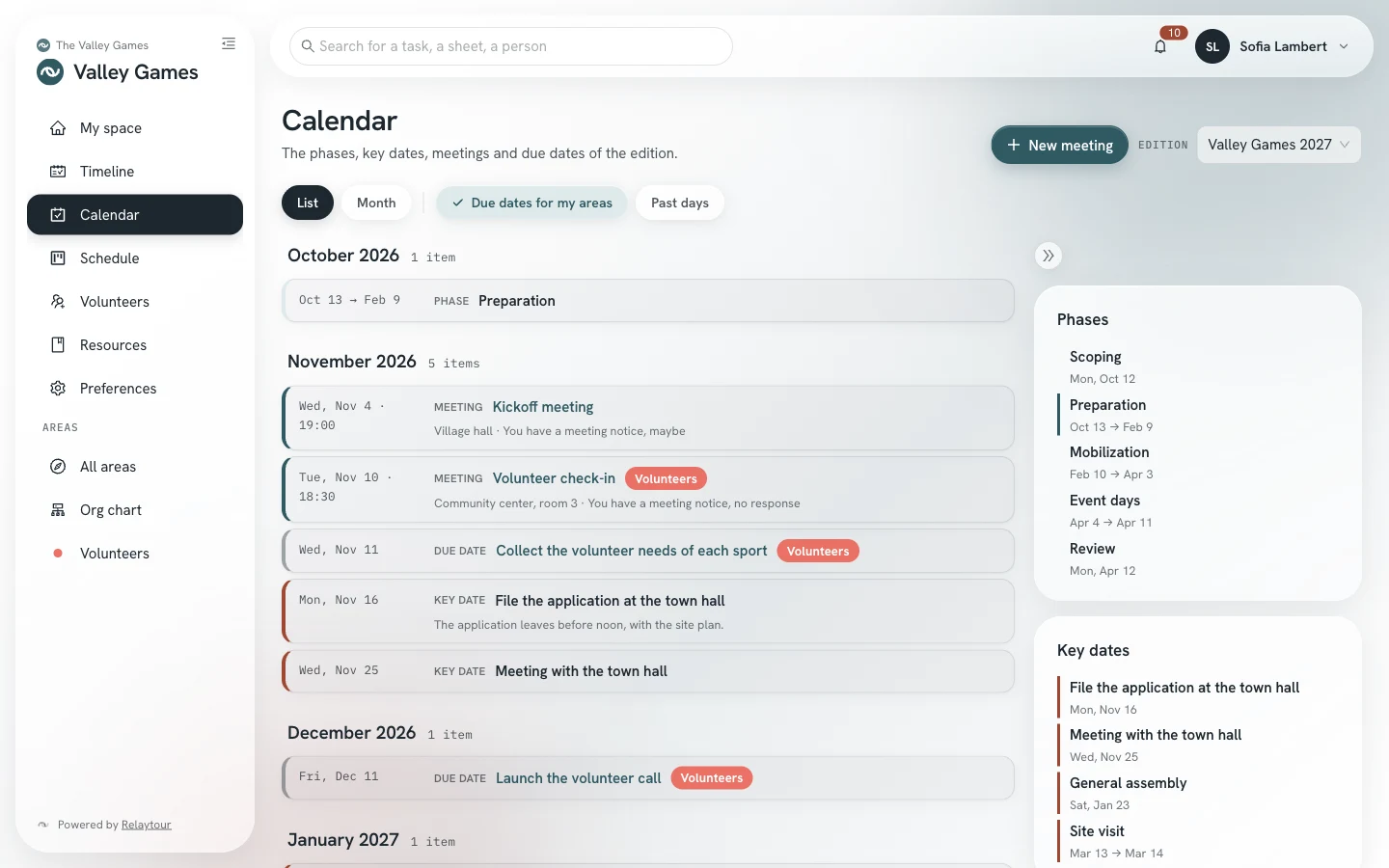
The right-hand column lists the phases, then the key dates of the period. A thin bar marks the current phase.
A meeting belongs to the calendar of an area, or to the global calendar of the activity, which its admins keep. You create the meetings of your areas: a title, a day, a start and end time, a venue, a video link, a description and linked tasks. A meeting can last several days, one month at most. Times follow your organization’s time zone.
A meeting sends a meeting notice to the whole area, the whole activity team, or people chosen from the team. Each person who receives a notice gets an email two minutes later, with a file that adds the meeting to their calendar. They reply in the organizer workspace. A reply sent from Outlook or Google does not reach it.
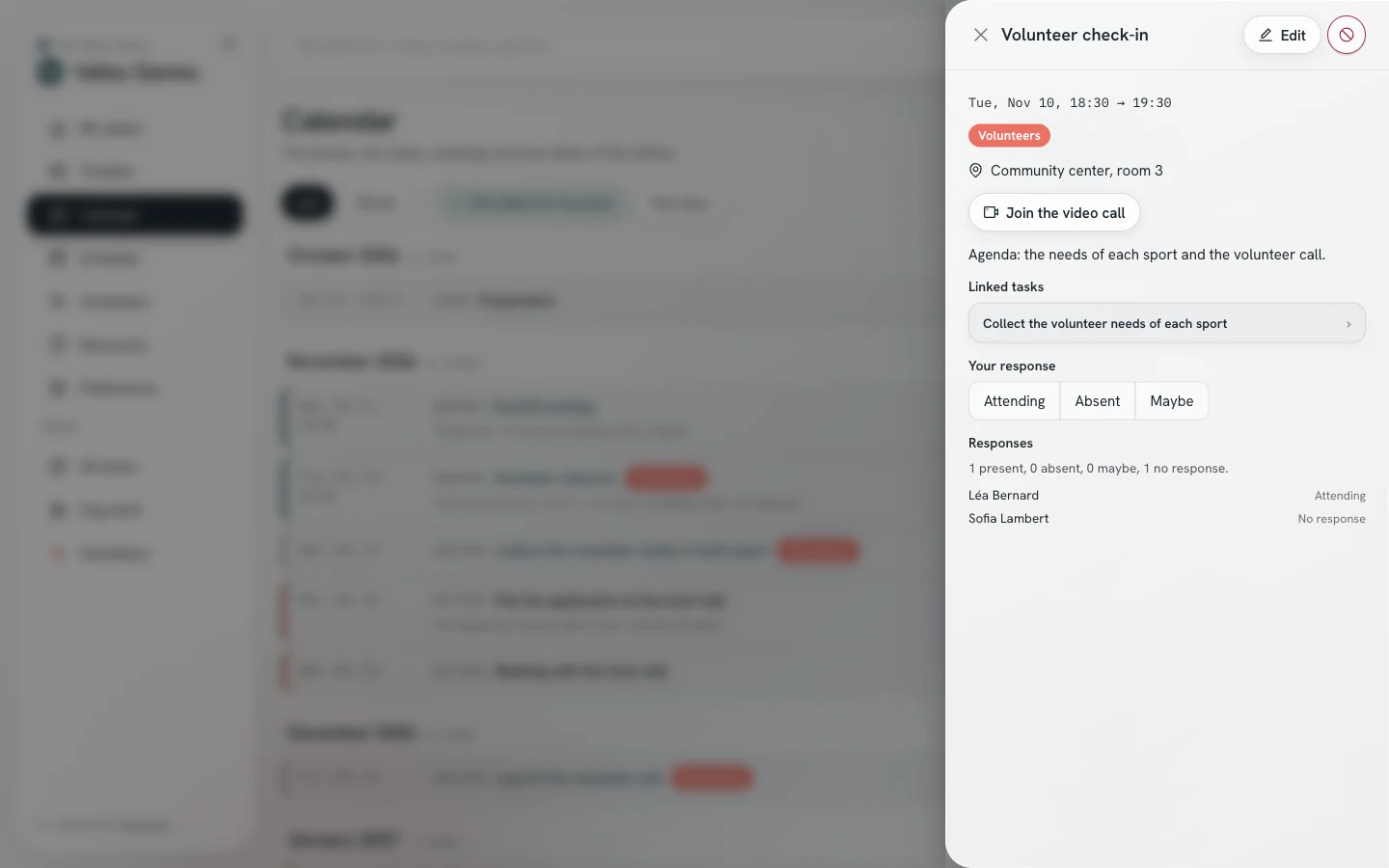
A date poll offers several time options for an upcoming meeting. A time option is a day, with an optional time. The people concerned answer each time option: yes, if needed or no. A notification informs them. When the answers are enough, a person who writes in the calendar chooses one time option and creates the meeting, already filled in with the time and the people from the poll.
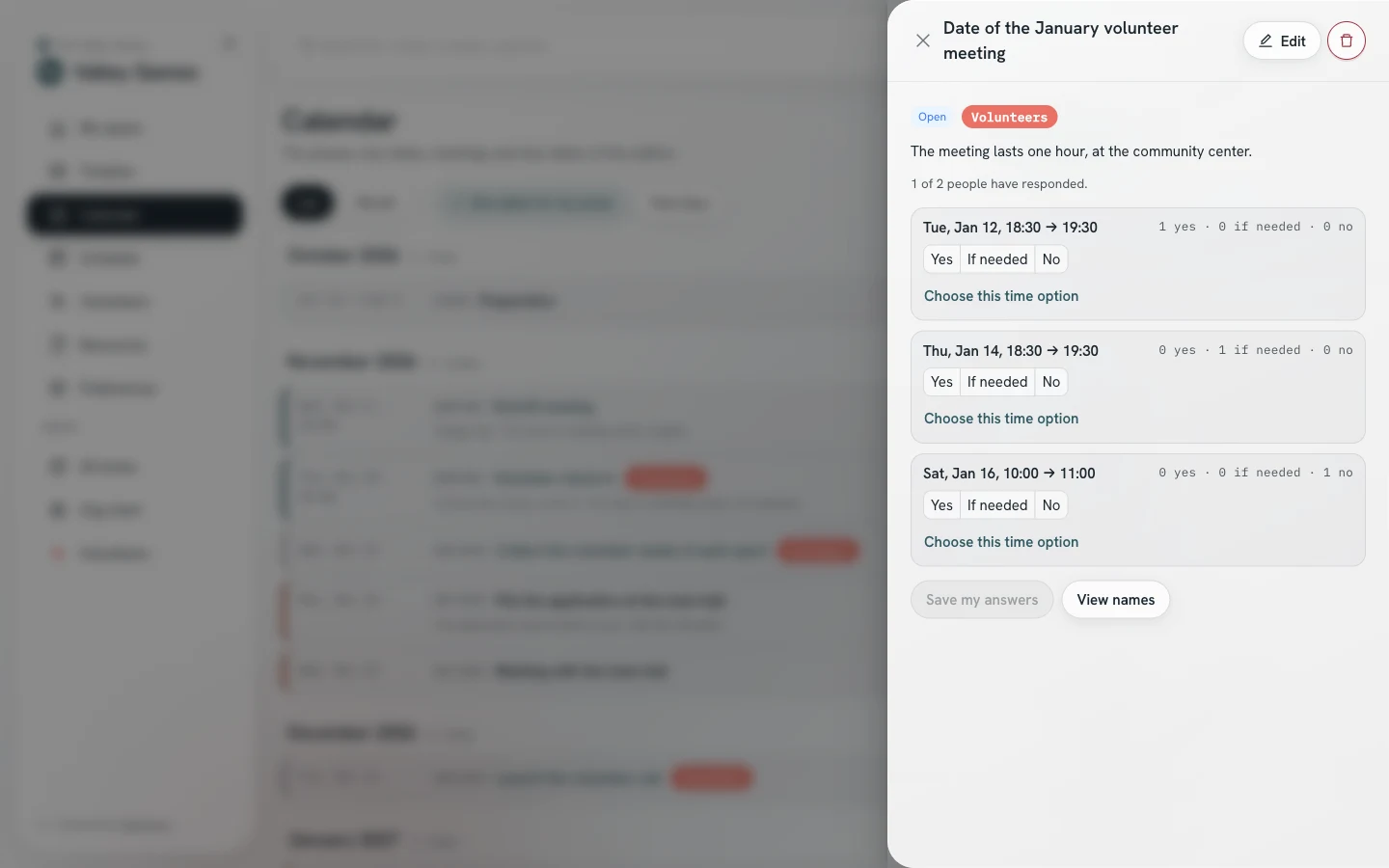
The people who write in the calendar of a meeting read the answers one by one. A person who views another area sees the title and time of its meetings, without the venue, the video link or the description. When you leave an area, you also leave its upcoming meetings.
The schedule describes the running order of the event day, or days, of the period. It is made of slots: a match, a welcome, an awards ceremony. A slot has a title, a day, a start and end time, an optional venue and a description. It belongs to an area, or to the whole activity when its admins create it.
Each slot places people, fifty at most: people from the team, or volunteers who have no account. A placed person is the lead of the slot or comes as a helper. You create and edit the slots of your areas. The venues belong to the activity admins.
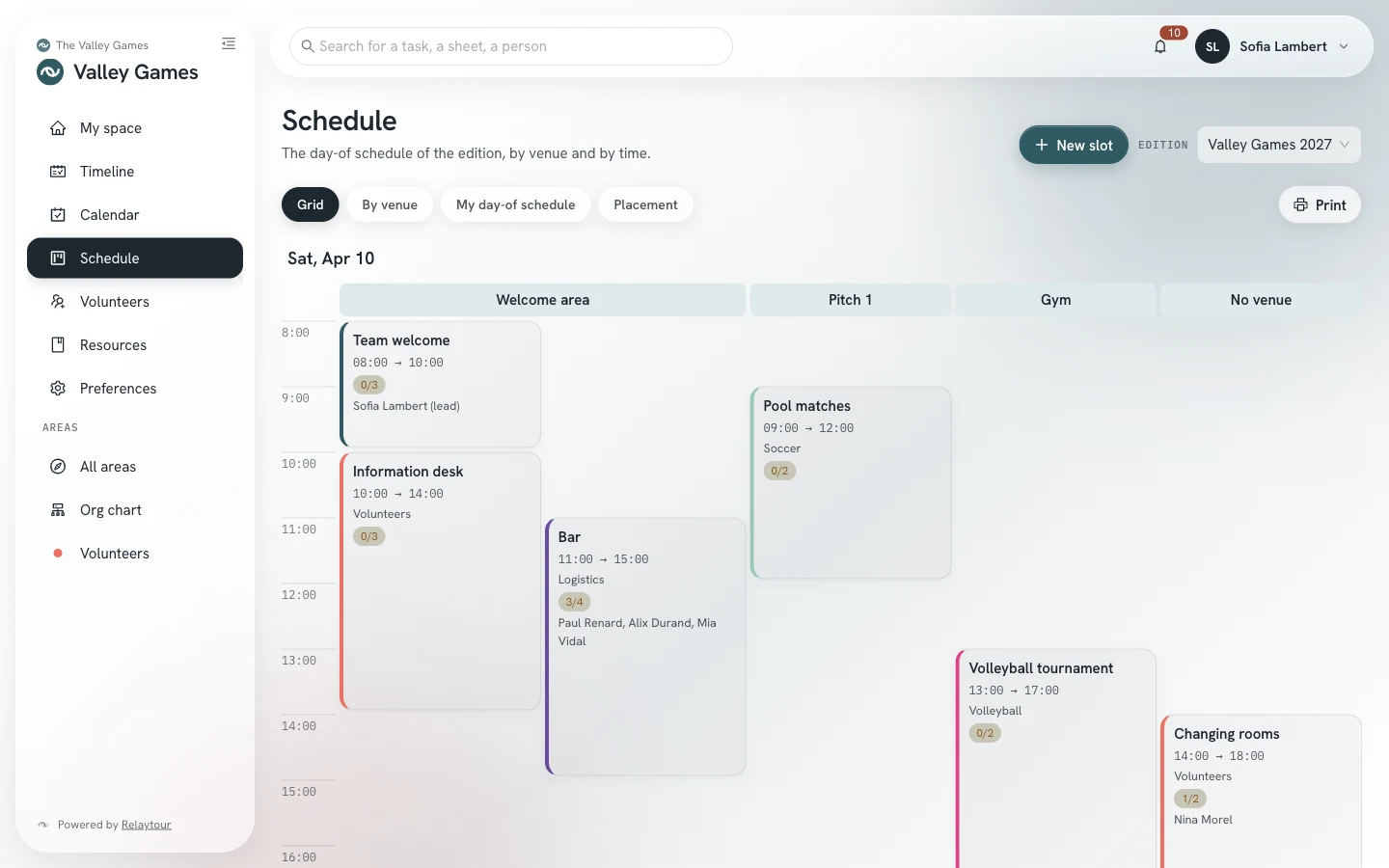
A slot opens in a panel. The panel shows the time, the venue, the area and the placed people with their role. The page of an area also lists its slots, in the “Event day” panel.
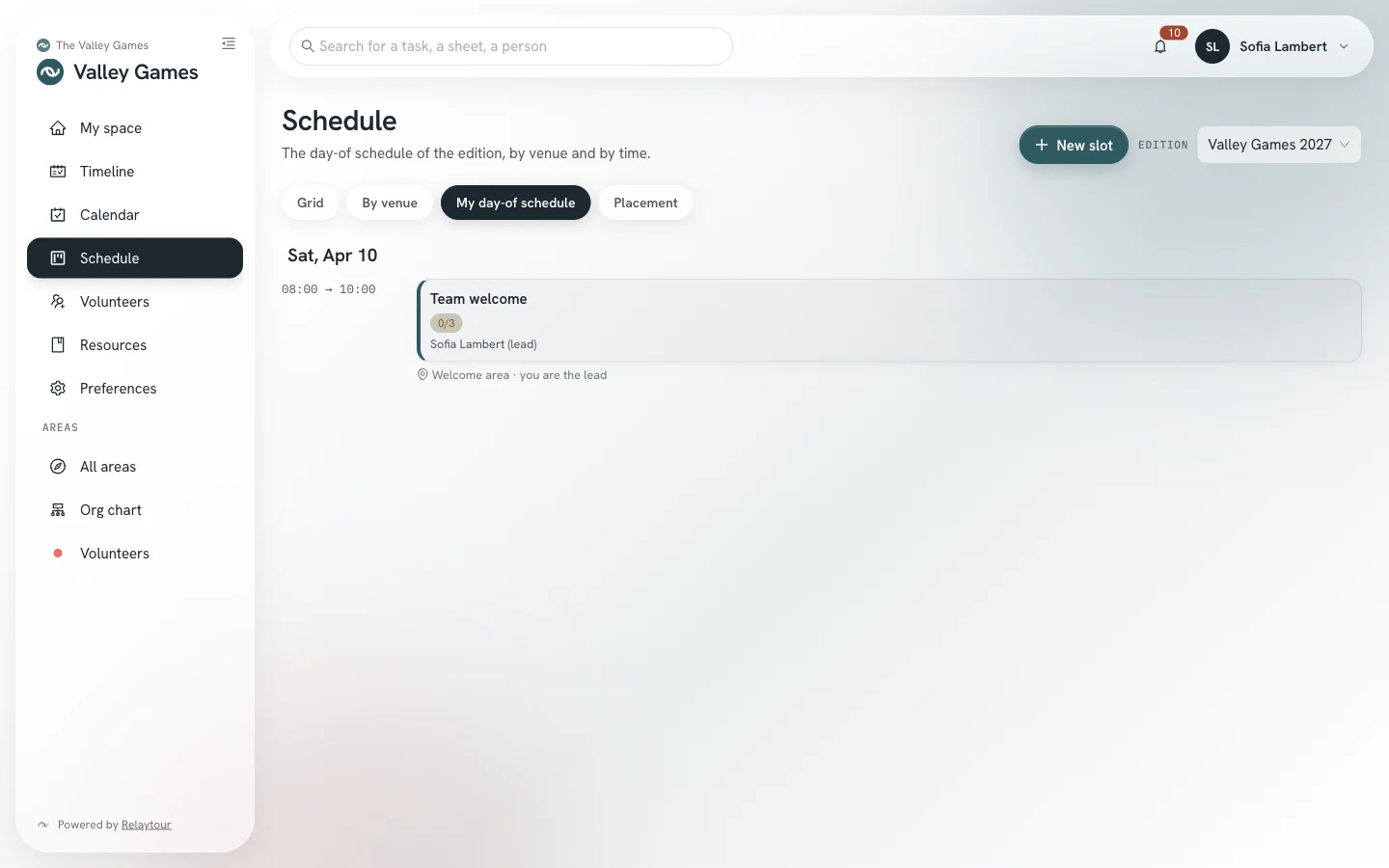
A slot can also look for volunteers as helpers, with public instructions. Its gauge then appears in the grid, for example “0/3”. The Placement view shows the hours that lack people, and the available volunteers to place there.
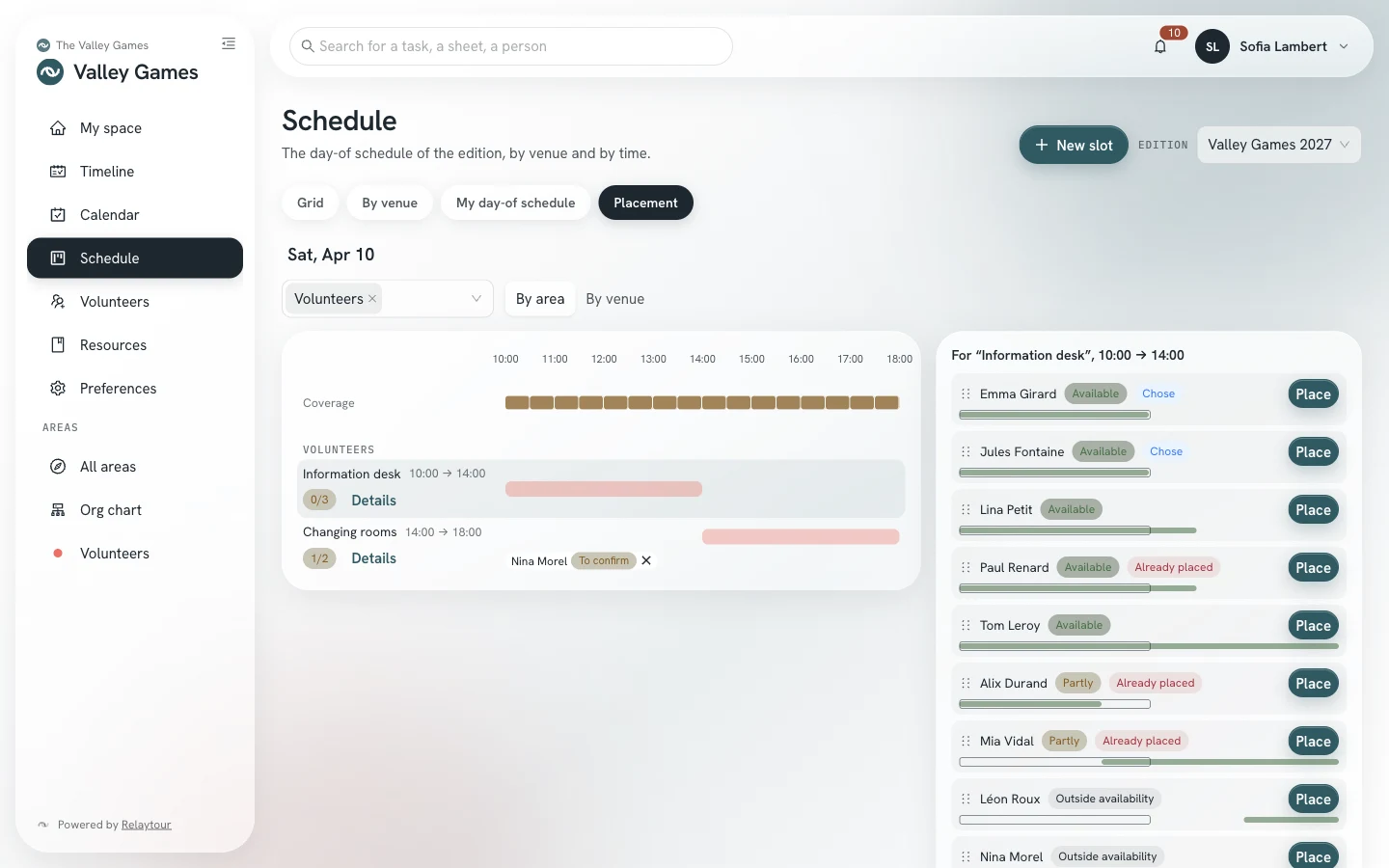
Your slots are included in your calendar subscription, described in your Preferences. They do not send a meeting notice by email to anyone on the team. The user guide Recruit and place volunteers describes helpers, calls and the “Placement” view.
The “Volunteers” screen lists the people who help the activity without an account in the application. It has three tabs: “Records”, “Applications” and “Calls”.
Each volunteer record has a name, and sometimes a phone number, an email address and a note. It shows the number of slots where the person is placed, and the state of their personal link.
You create a volunteer record with the person’s approval, then you place them in the slots of your areas. You edit the records you created. The activity admins edit and delete all records.
The “Applications” and “Calls” tabs are used for recruiting through a public address. The user guide Recruit and place volunteers describes them.
The contact details of a record are read by the activity admins, by the person who created it and by the people of an area where the volunteer is placed. Elsewhere, the cell shows “Restricted”. The server deletes a record that has not been used for two years.
This page presents each area of the activity with its description. It sorts them into three blocks: your areas, your interests, then the other areas. Each area shows the number of people still wanted. This number is for information: you can express an interest in a full area. The page shows no task, no sheet and no person’s name.
You only see the activities of your team: those where you have an appointment, and those an admin has affiliated you with. In an activity where you have no area, you only see this page, the org chart and your preferences, until your first appointment.
The org chart presents the team of the activity for the current period. It shows the activity contact, its admins, then each area with its main contact and its coordinators.
A personal email address appears only with two approvals: the activity setting, chosen by its admins, and the person’s own approval, given in their preferences. The link on an address opens your device’s mail app.
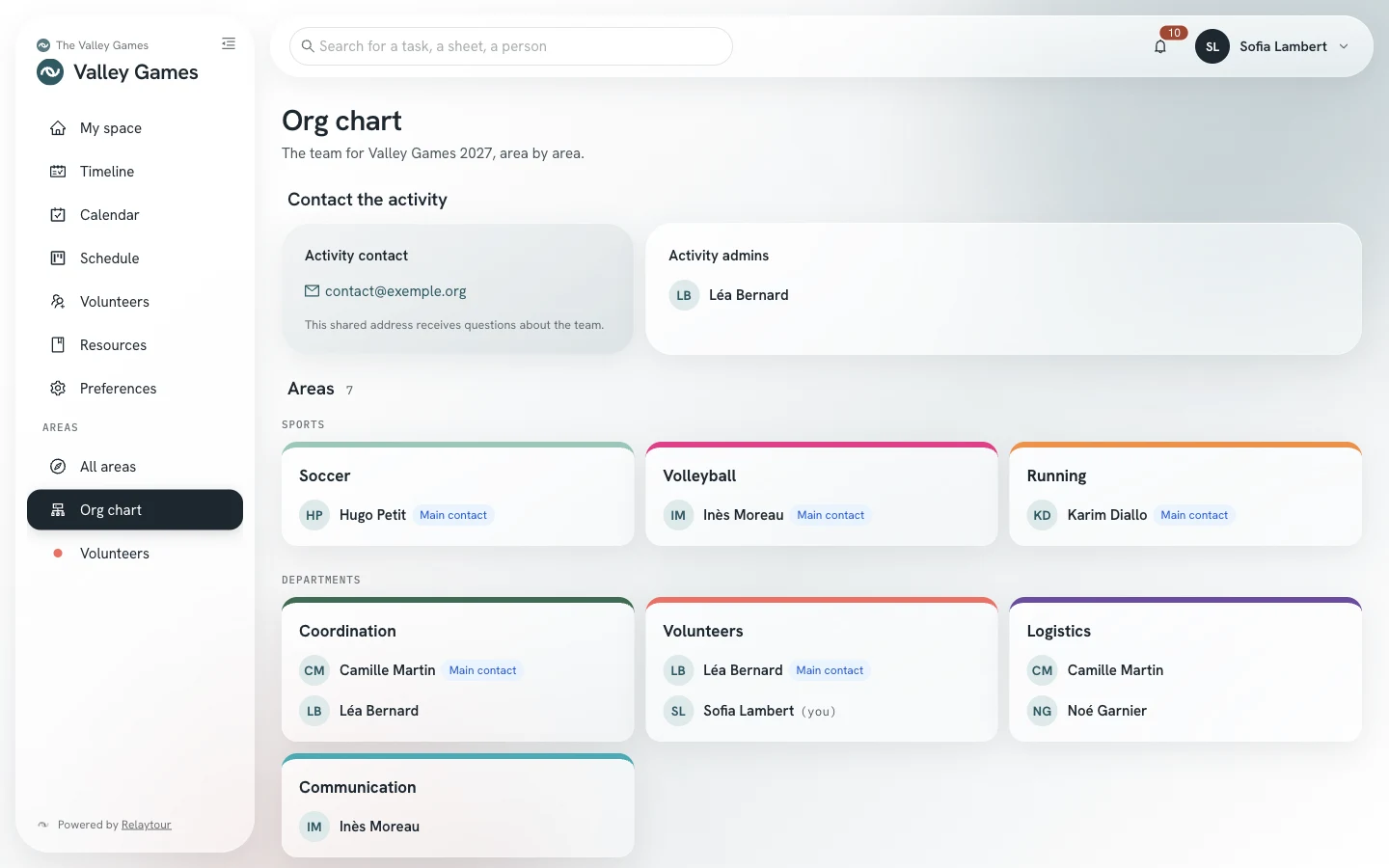
A person with no appointment in the activity sees the admins, the main contact of each area and the activity contact. They see no personal email address.
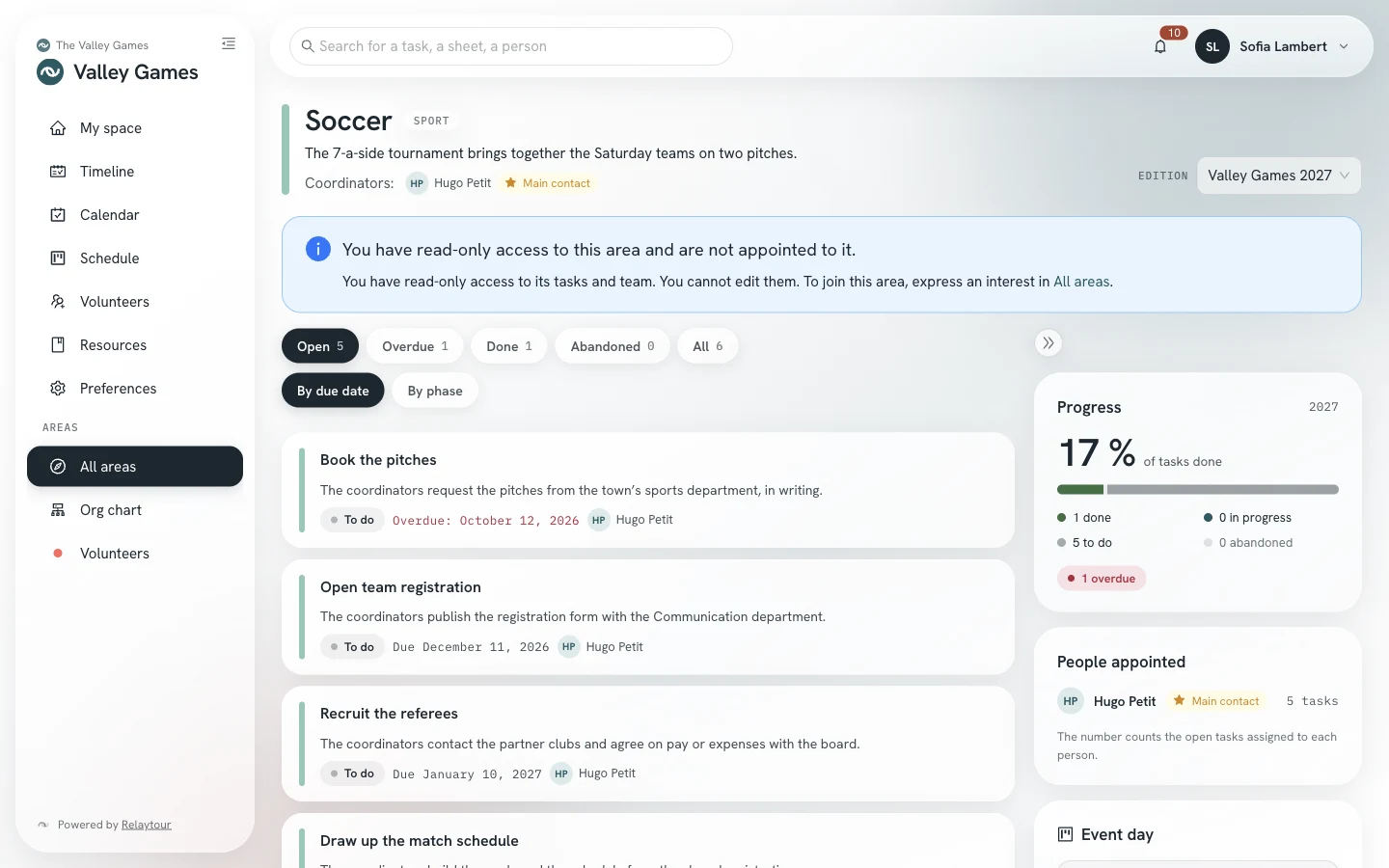
The page of your area gathers its tasks, its progress, its how-to sheets and the appointed people. Tasks can be filtered by status: open, overdue, done, abandoned or all.
The main contact of the area, if one is designated, appears at the top of the appointed people with the label “Main contact”. This is the person to ask first. They have the same rights as the other coordinators.
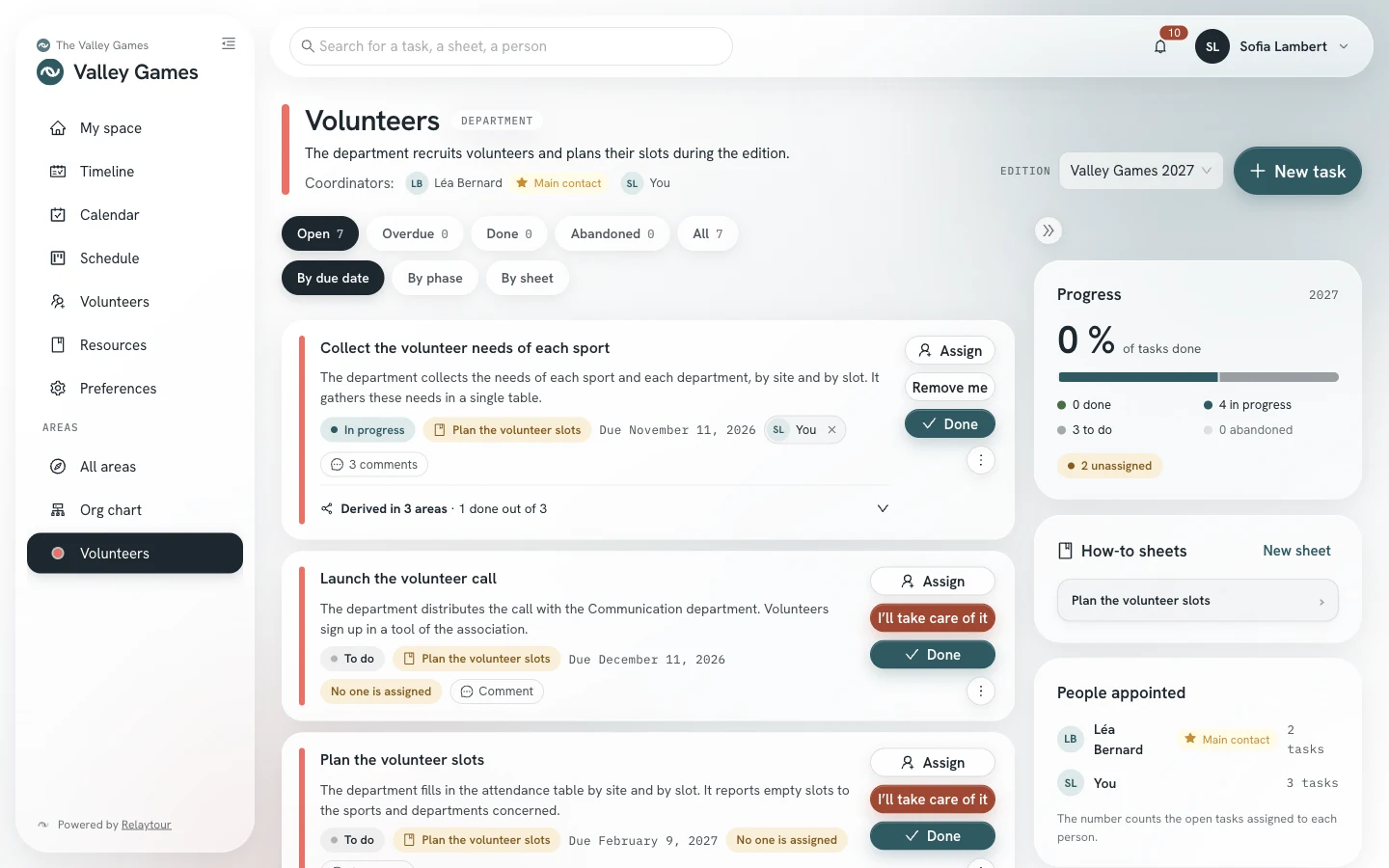
Tasks can be read in three ways. “By due date” keeps a single list. “By phase” sorts the dated tasks into the phases of the activity, and puts the tasks without a due date last. “By sheet” sorts them under the linked how-to sheet, and puts the tasks without a sheet last.
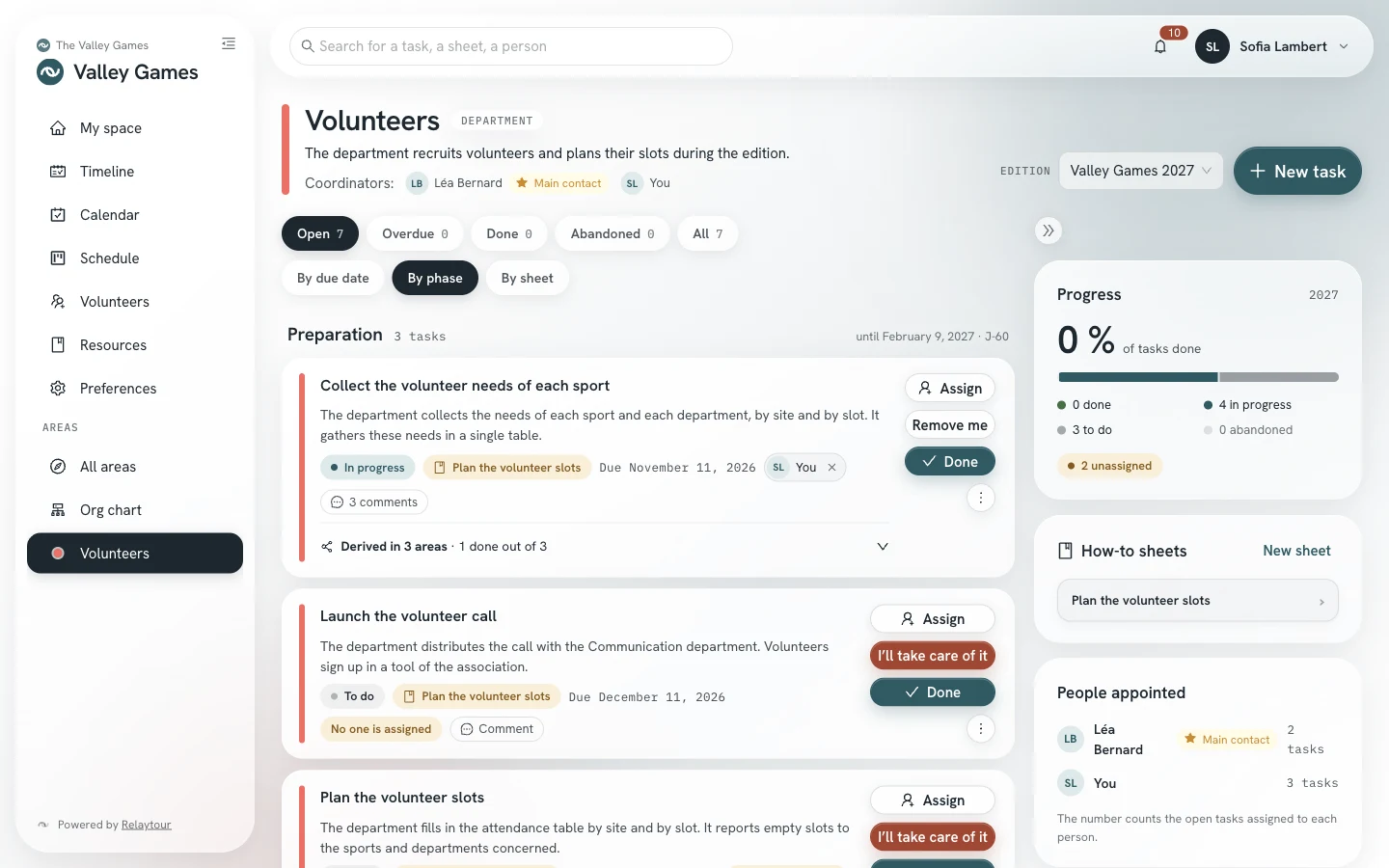
These actions are open to the people appointed to the area for the period being viewed. An archived period makes its tasks read-only.
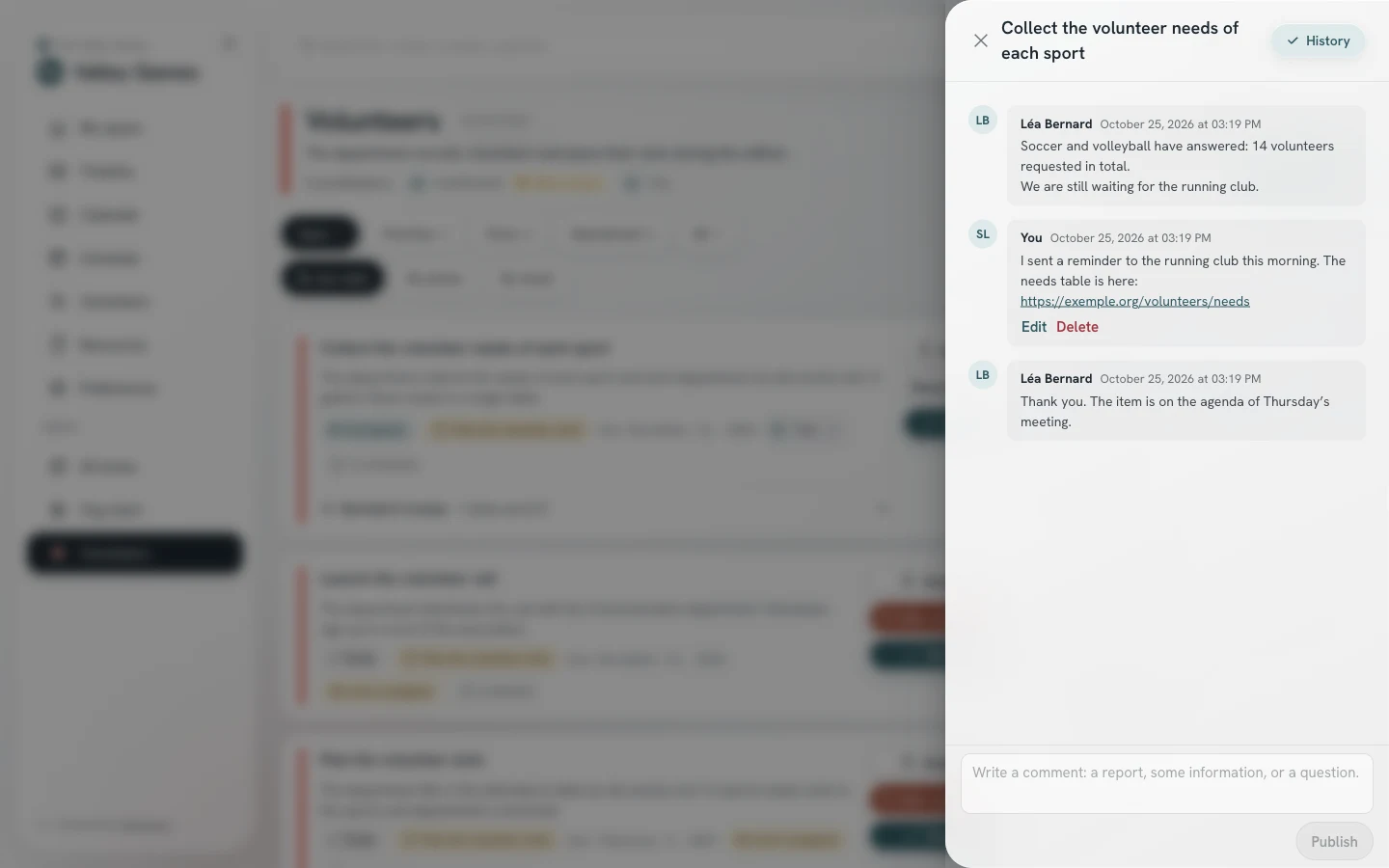
Each task has a thread. The “Comment” button opens it. You note where you stand there, and you read your team’s comments and the task history. The people assigned to the task receive a notification, with no immediate email.
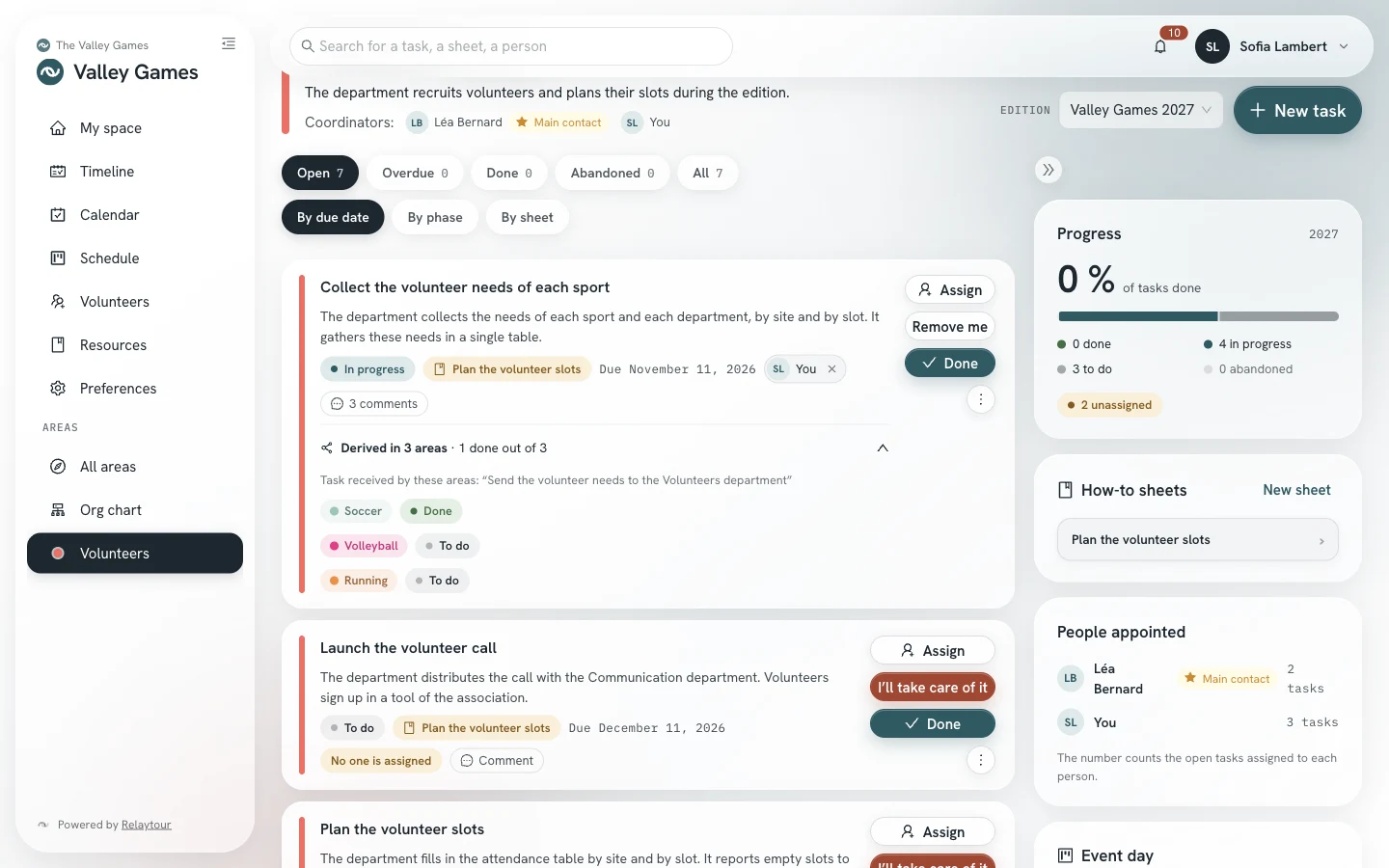
A task is shared with other areas of the activity. For example, a department asks the same thing of each sport. Each chosen area receives its own task, with its own status, due date and assignees. Your task shows where the others stand, for example “1 done out of 3”.
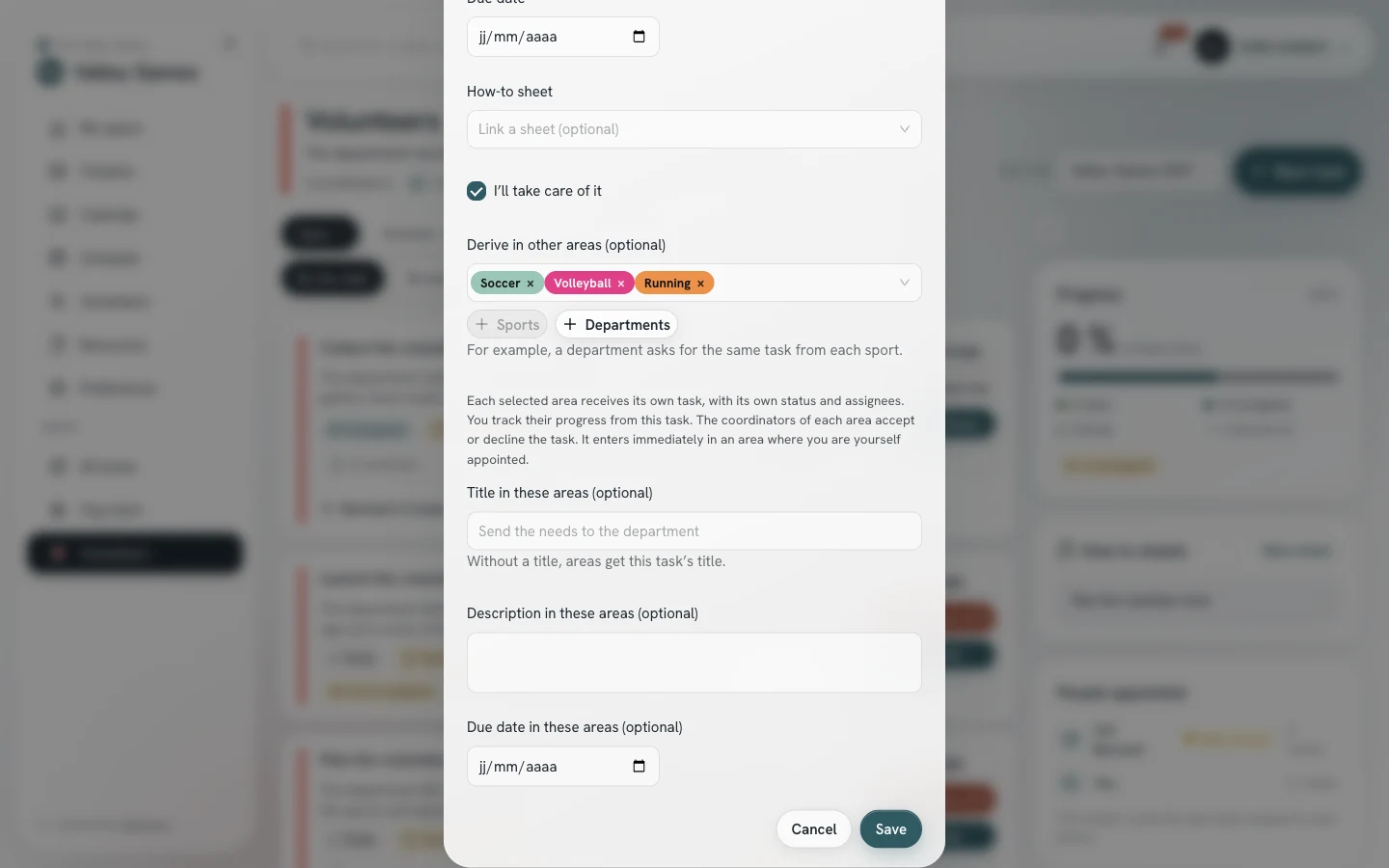
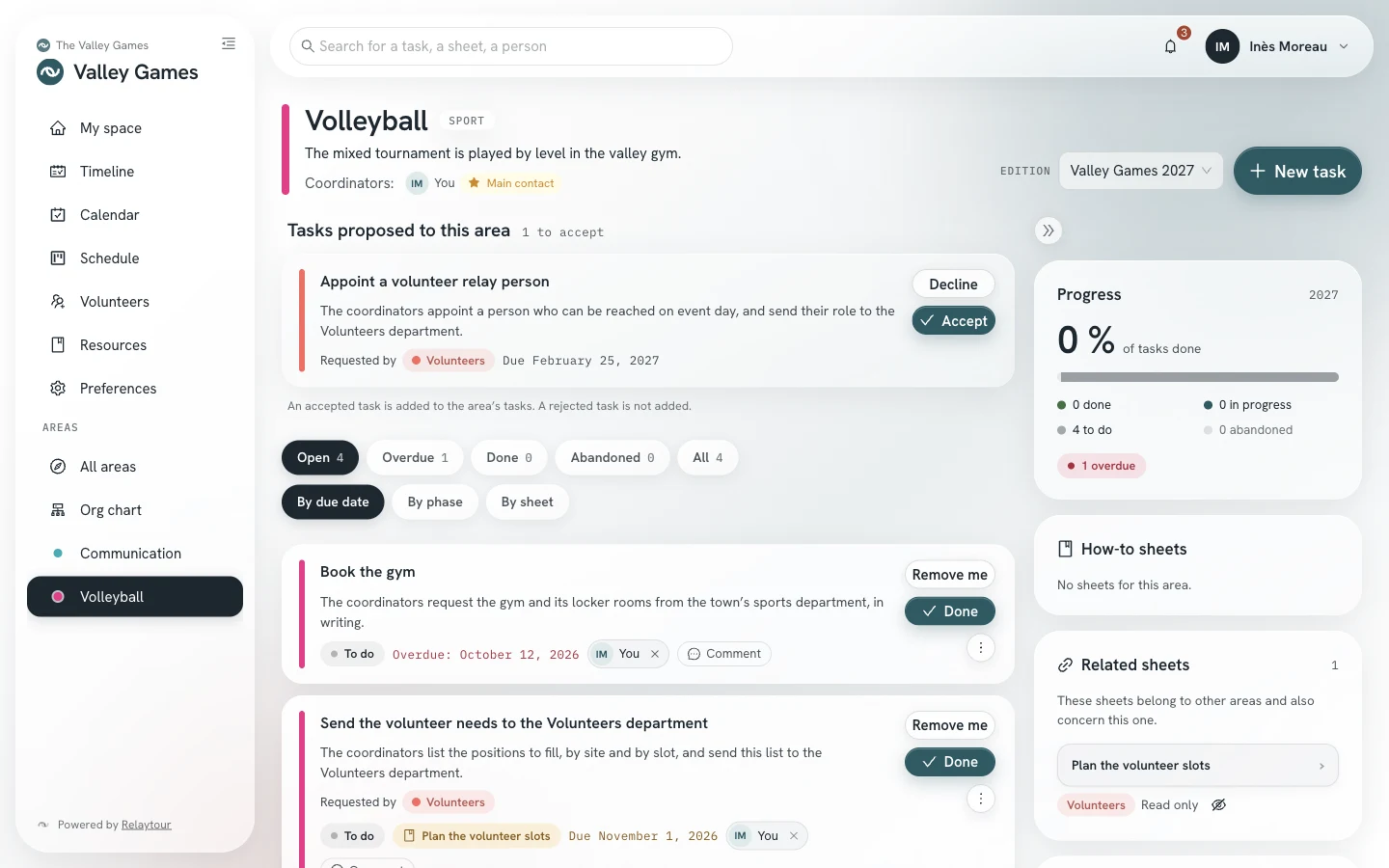
Until you accept it, a proposed task does not count in your tasks, in the progress of your area or in your reminders. Each task then keeps its own status: abandoning or editing one does not change the others. An activity admin can add a task to your area without your approval, even after a refusal.
The “Refer a person” panel lists your referrals and their state: pending, accepted or declined. You can withdraw a referral while it is pending.
You can also view the other areas of your activity. Their page shows the tasks, the progress and the appointed people. It shows no sheet and offers no action, and a banner says so. To join an area, express an interest in “All areas”.
The whole activity team reads the title and description of a task. Do not write any personal contact details there.
A sheet from another area can also concern yours. The “Related sheets” panel presents it under your how-to sheets, with its original area and the label “Read only”. An accepted shared task also adds the sheet it cites.
The “Resources” screen gathers the how-to sheets and, when the association has linked some, the documents from its cloud provider. The how-to sheets explain how to carry out each step of the organizing. They can be filtered by area, searched by word and displayed as cards or as a condensed list.
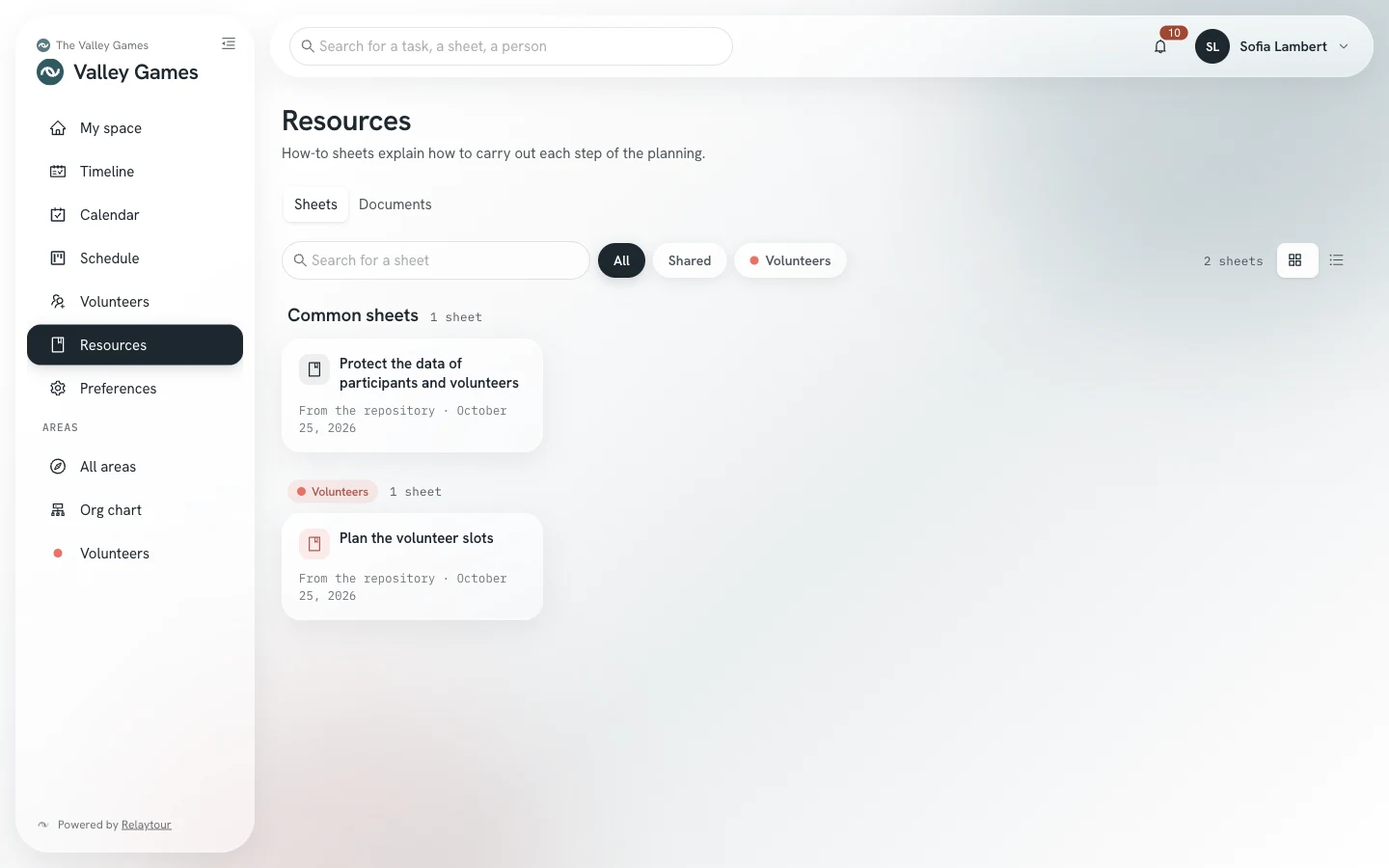
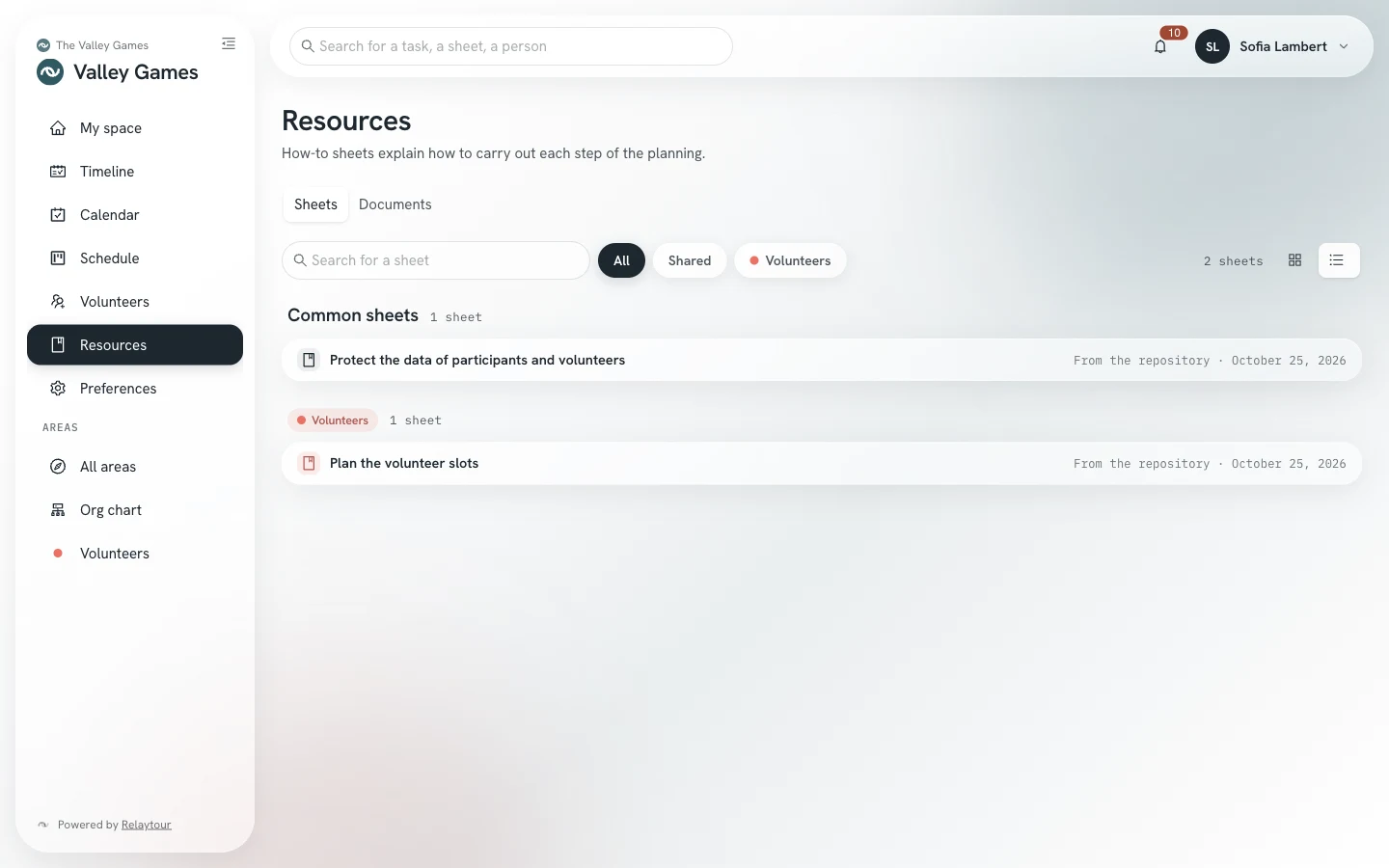
Each sheet shows its update date and its author, or the label “From the repository” when it comes from the organization’s content folder.
When the association has connected its cloud provider, the “Documents” view is added next to the “Sheets” view. This view presents the folders linked to the whole activity, then those of your groups and your areas. A click opens a folder, then a document. Relaytour displays a PDF, an image, a text or a Markdown file, without keeping a copy. An office document is displayed converted to PDF by the provider. Another document is downloaded, or opens at the provider.
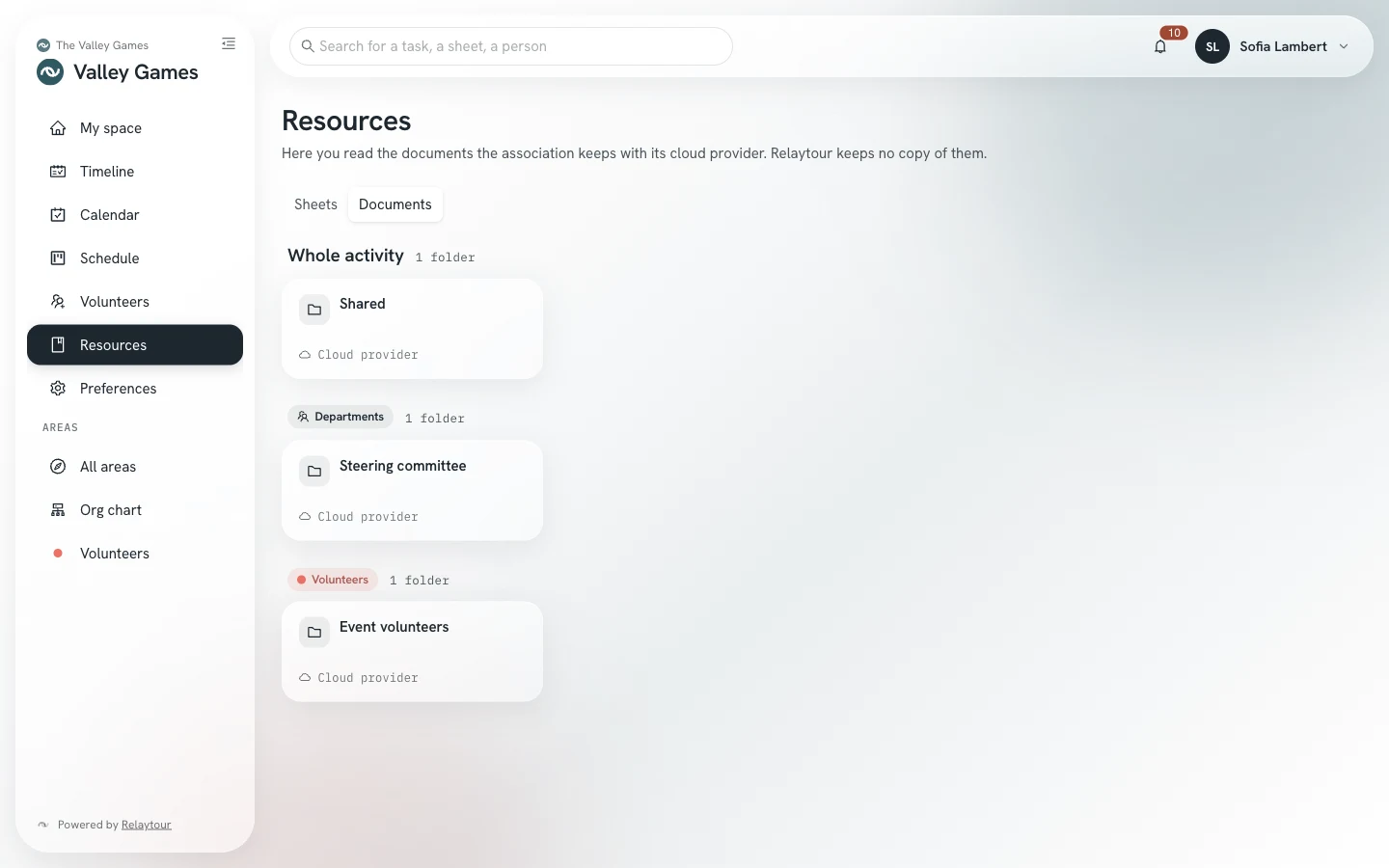
An organization admin chooses the linked folders and their readers. You only see the folders of the whole activity, and those that serve your areas directly or through their group.
A sheet describes a procedure step by step, often with its due dates in D-n. The “Linked tasks” panel gives the tasks of the current period that refer to this sheet.
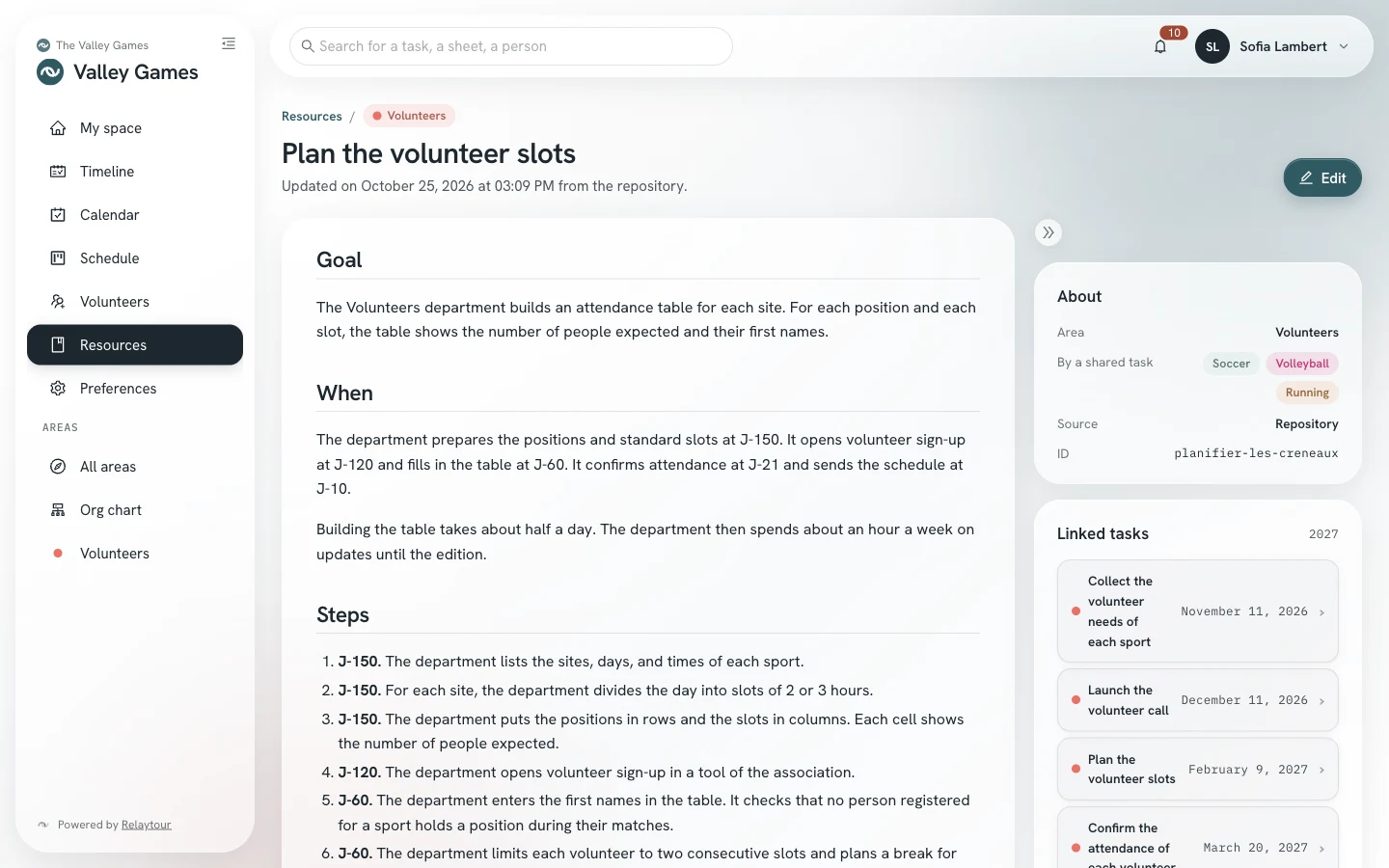
The “About” panel shows the areas and groups that the sheet also concerns. The people in those areas read it without editing it. In the text, a mention such as @logistique or @groupe:sport appears as a label; the mention of a group lists its areas. The guide Write a sheet in Markdown describes the “Also concerns” list.
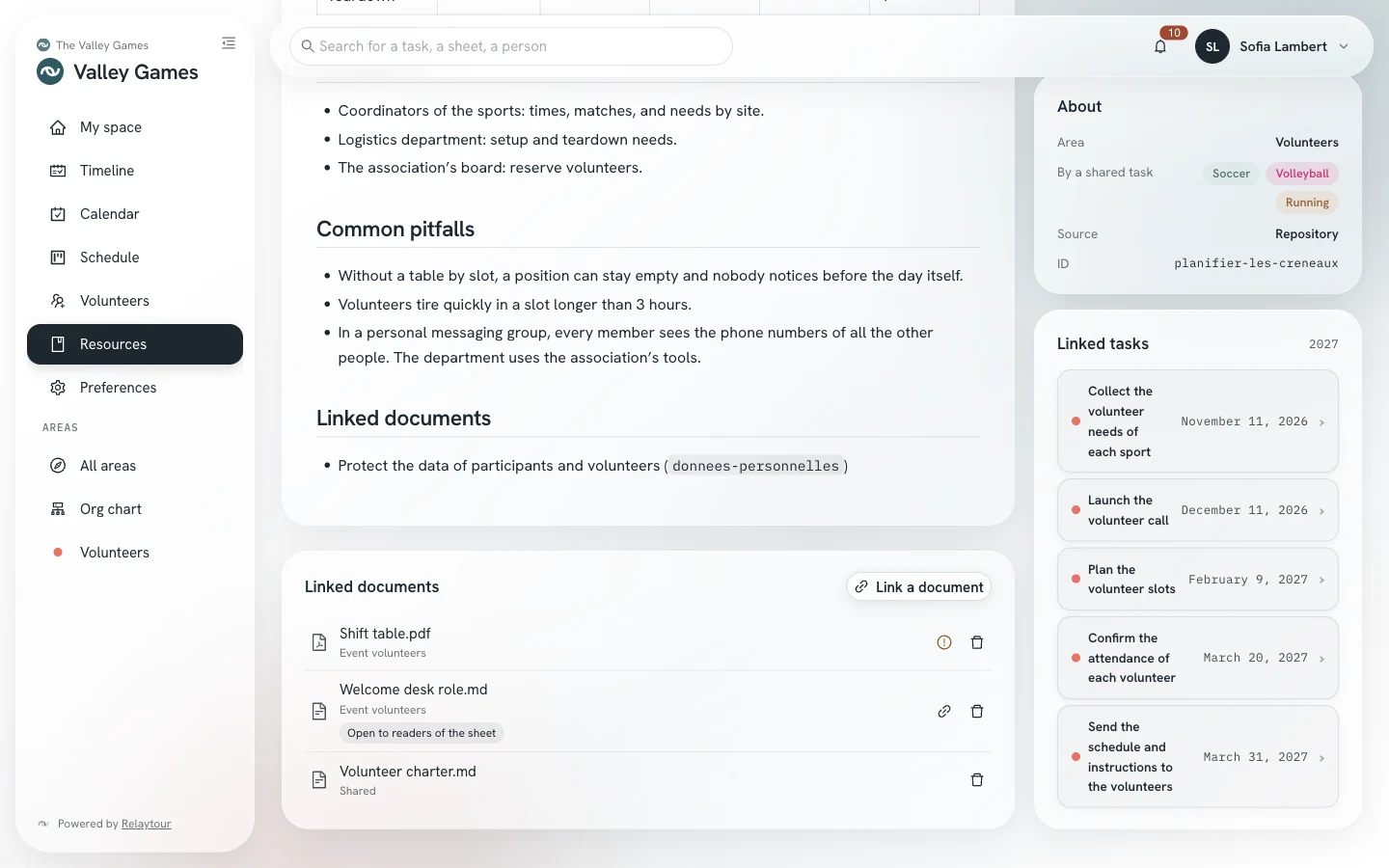
The “Linked documents” panel cites the cloud provider documents that go with the sheet: a spreadsheet template, a plan, a charter. A click opens the document. A document labeled “Restricted to the original area” comes from a folder you cannot read: you see its name without opening it.
When the sheet also concerns other areas, the person who writes it sees which linked documents those areas will not be able to open. The warning appears under the “Also concerns” list in the editor. In the sheet, the detail is read through the document’s alert button. An organization admin then extends the linked folder, or opens that single document to the sheet’s readers.
Write contacts as roles, without personal addresses or numbers: a sheet that contains some cannot be exported to the organization’s repository. The version history is reserved for admins.
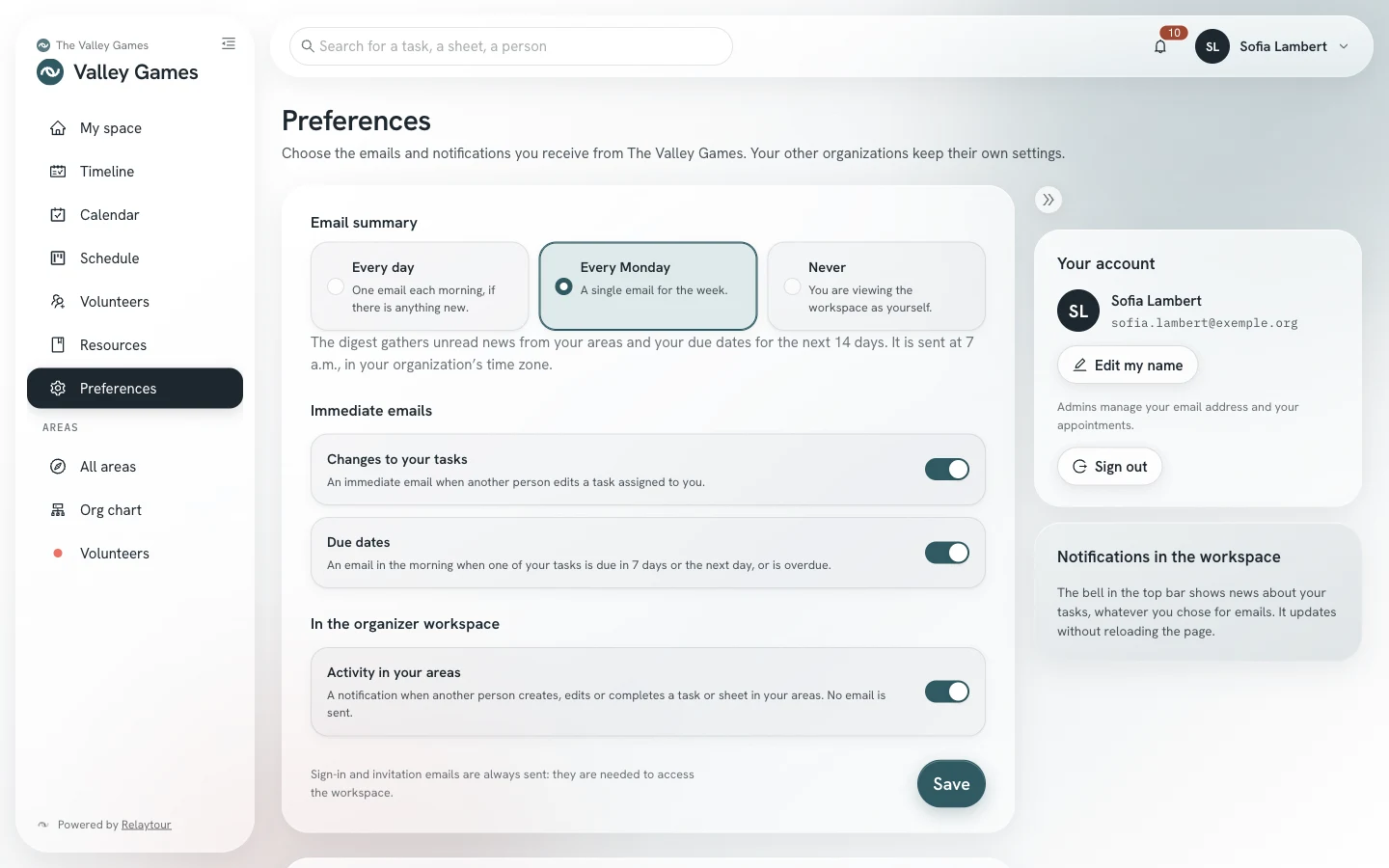
You choose the emails you receive, and the notifications for your areas. The notifications for your tasks stay visible in the workspace, whatever you choose for emails.
Your preferences apply to the displayed organization. If you belong to several organizations, each keeps its own settings.
Admins also find the “Your mail app” panel there, described in the user guide “Choose your mail app”.
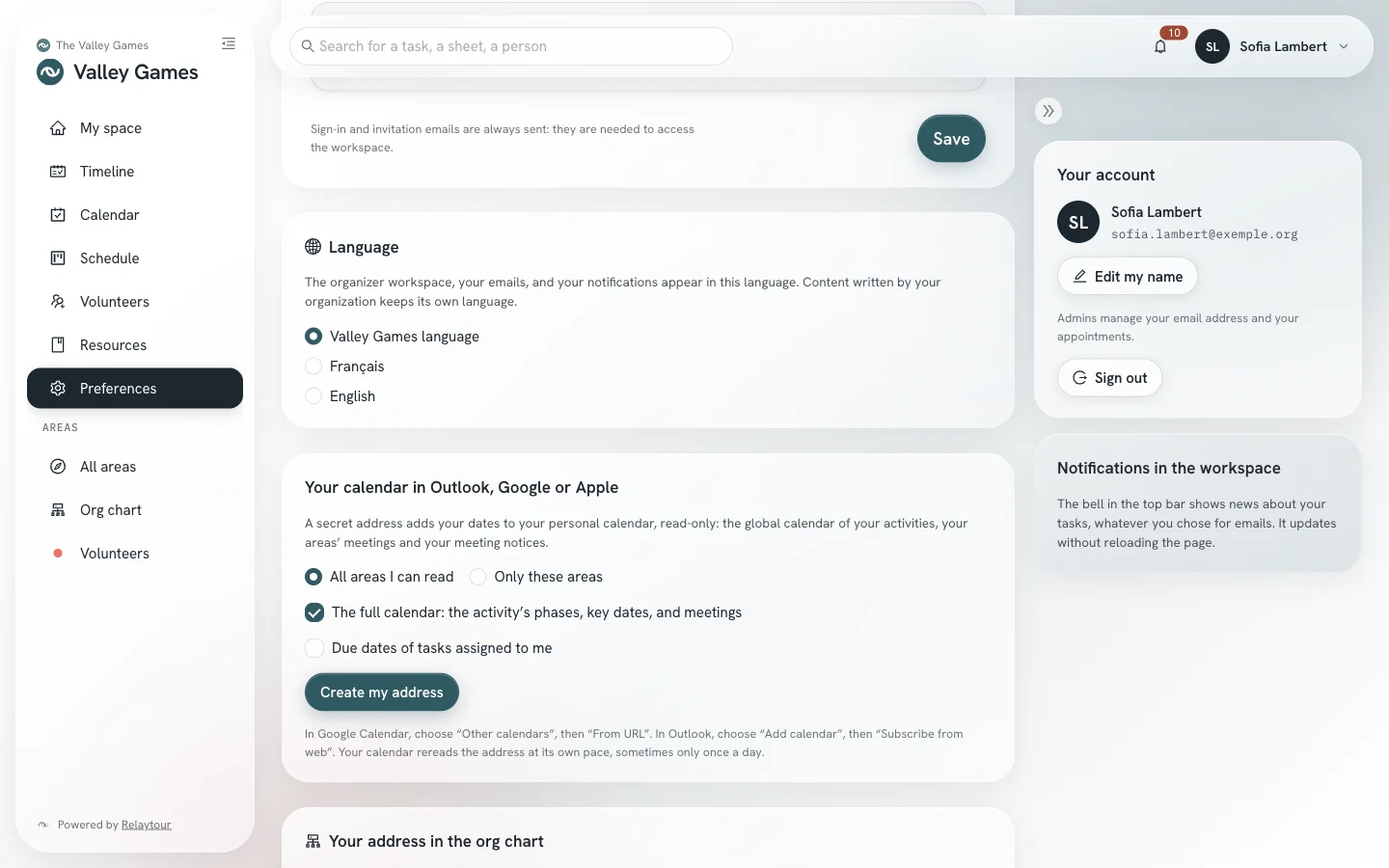
The address of your subscription is shown only once, when it is created: copy it right away. It gives access to the content of your calendar: keep it to yourself. Relaytour rechecks your rights at each read: an area you leave disappears from your calendar. Google Calendar rereads an address at its own pace, sometimes only once a day.
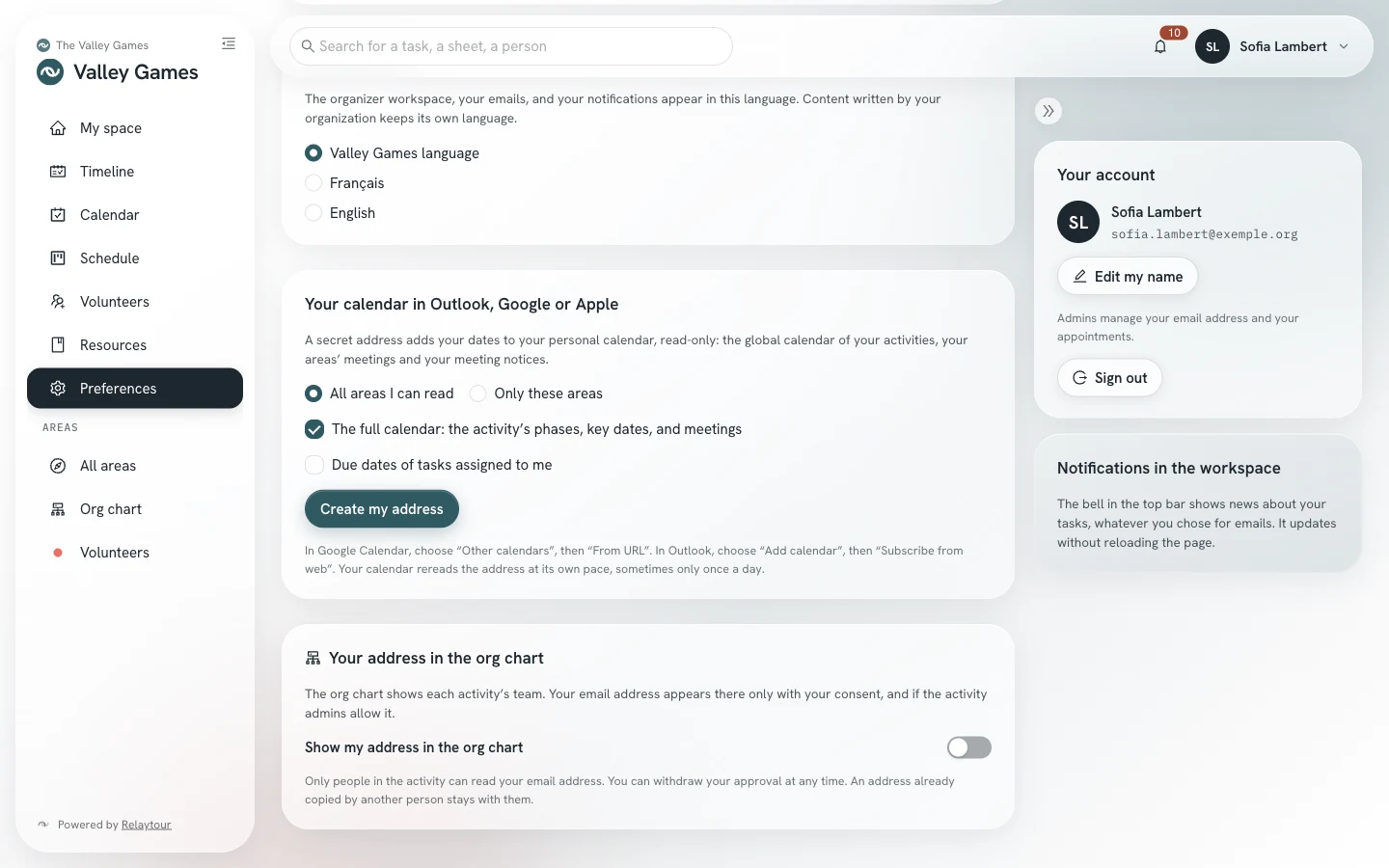
Your name, your email address and your appointments are managed by the admins. Sign-in and invitation emails are always sent.
Several coordinators often share an area. Relaytour updates your screens while the others work, and warns you when two edits cross. Four habits avoid most of these crossings.
Click “I’ll take care of it” before correcting a task or carrying it out. Your name appears on the task, and your team sees that it is taken.
The “More actions” menu offers “Mark as in progress”. The other coordinators of the area then receive a notification that you have started.
Tell your team before you pick up a sheet. Relaytour does not merge two edits made at the same time: the second person to save chooses between the two texts.
When Relaytour reports a conflict, read the other person’s version first. “Overwrite” replaces their work with yours. Keep this choice for a version you have read.
When another person edits a task, a sheet, an area or the team, your screen shows the change within a few seconds. You do not reload the page. The bell receives its notifications the same way.
This tracking stops when the tab is hidden, and the screen reloads its data when you return. On a network that blocks this tracking, the screens reload every minute. The editor of a sheet never changes while you are writing.
The banner “Your access has changed, or your session has ended.” means the screen can no longer refresh. Reload the page.
Relaytour does not save your edit in place of an edit you have not seen. A window shows who edited the task, and when.
The same window opens when a task’s status changed before your click. It gives the current status, without naming the person who changed it. Taking a task or removing yourself from it causes no conflict.
If another version of the sheet was saved while you were writing, the editor does not save yours. A notice shows who saved that version, and when. Your text stays on screen.
The editor also keeps a draft of your writing in your browser. If you leave the editor without saving, it offers you “Resume draft” or “Delete the draft” when you return.
The draft stays in this browser: it exists on no other device. It is erased when you save, when you abandon the edit and when you sign out.
The bell counts the unread notifications of the displayed organization. Its drawer sorts them by activity, in groups that collapse. Each notification shows its area above its text. The “Read all” button of a group marks its notifications as read.
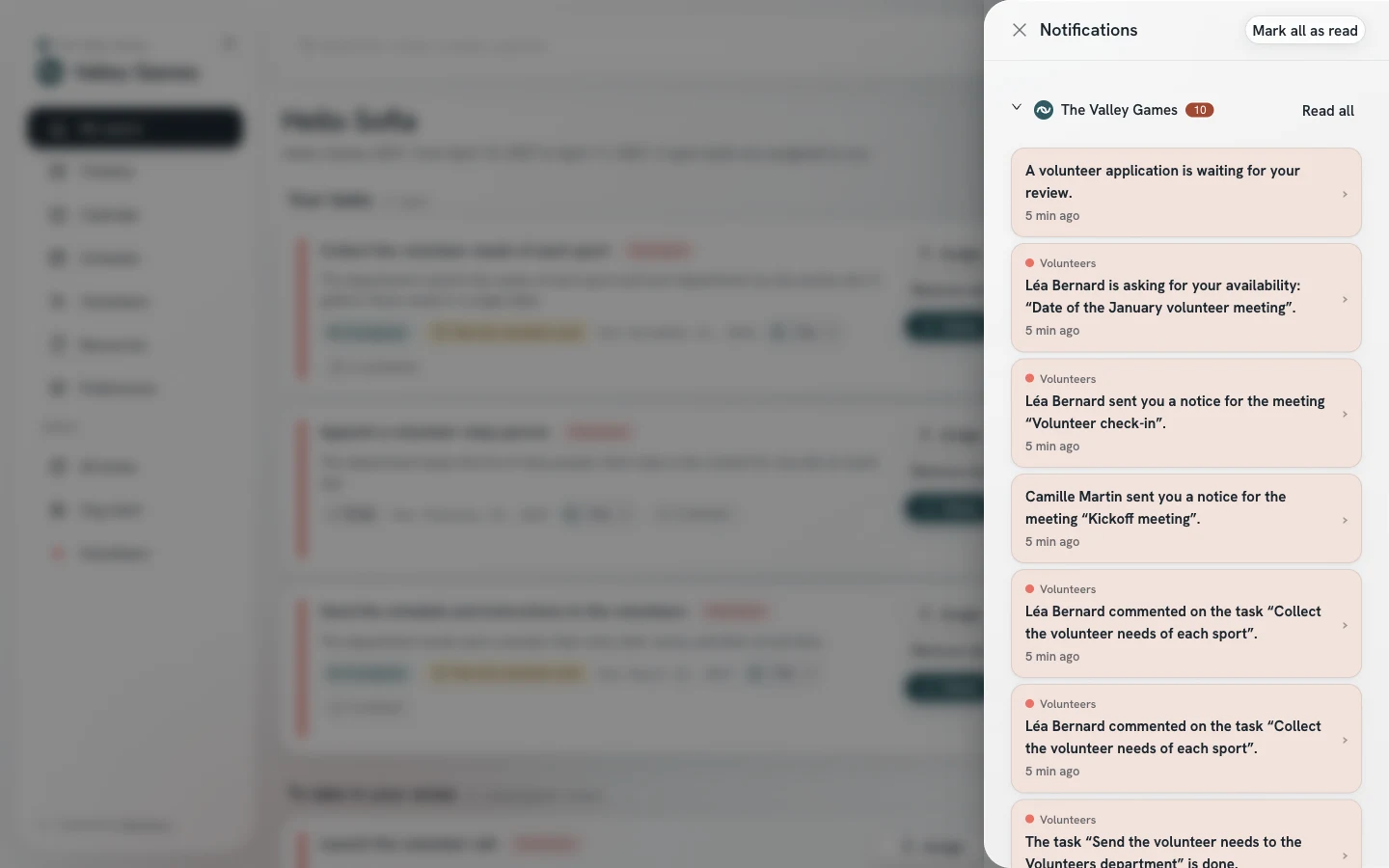
If you belong to several organizations, the box “You have other notifications in your organizations” lists those with news. Each opens in a new tab, and the original tab keeps its own. In the installed app, the organization changes in the same window.
When another person creates, edits, starts, completes or abandons a task in your area, you receive a notification. You also receive one when they create or edit a sheet of the area. A click on a task notification opens the area and highlights that task.
For a sheet, or for a task that is not assigned to you, no email is sent. The “Activity in your areas” setting, in your Preferences, turns off these notifications.
A task assigned to you keeps its notification, whatever this setting. An email also informs you when another person edits it or changes its status, depending on the “Changes to your tasks” setting.
A completed task is announced without a name: only the person who checked it and the admins know who completed it.
You edit the tasks and you read the sheets of the areas where you have an appointment. You view the tasks of the other areas of the activity, without their sheets. A past appointment keeps access to the area’s archives.
You express an interest in “All areas”, and an admin makes the appointments. A person outside the team submits a request through the public form, when an admin has opened it.
If you take part in several activities, a button at the top of the menu lets you switch activity. It stays hidden when you only see one.
A period is called an edition for an event, a season for a section, a term for a governing body. The area groups carry the names declared by the activity.
“This organization is read-only” means that no more changes are accepted. “This activity is archived” means that the activity remains available to read, without changes.
Admins also have the “Manage the activity” and “Manage the organization” groups in the menu. Their user guides describe them, in addition to this one.