How-to sheets are written in Markdown. A few symbols placed in the text create headings, lists, links, and tables. This guide presents all the symbols that sheets display.
This guide complements the “A how-to sheet” section of the coordinators’ user guide. Writing a sheet requires an editing right, granted by an admin.
Starting point
The sheet editor
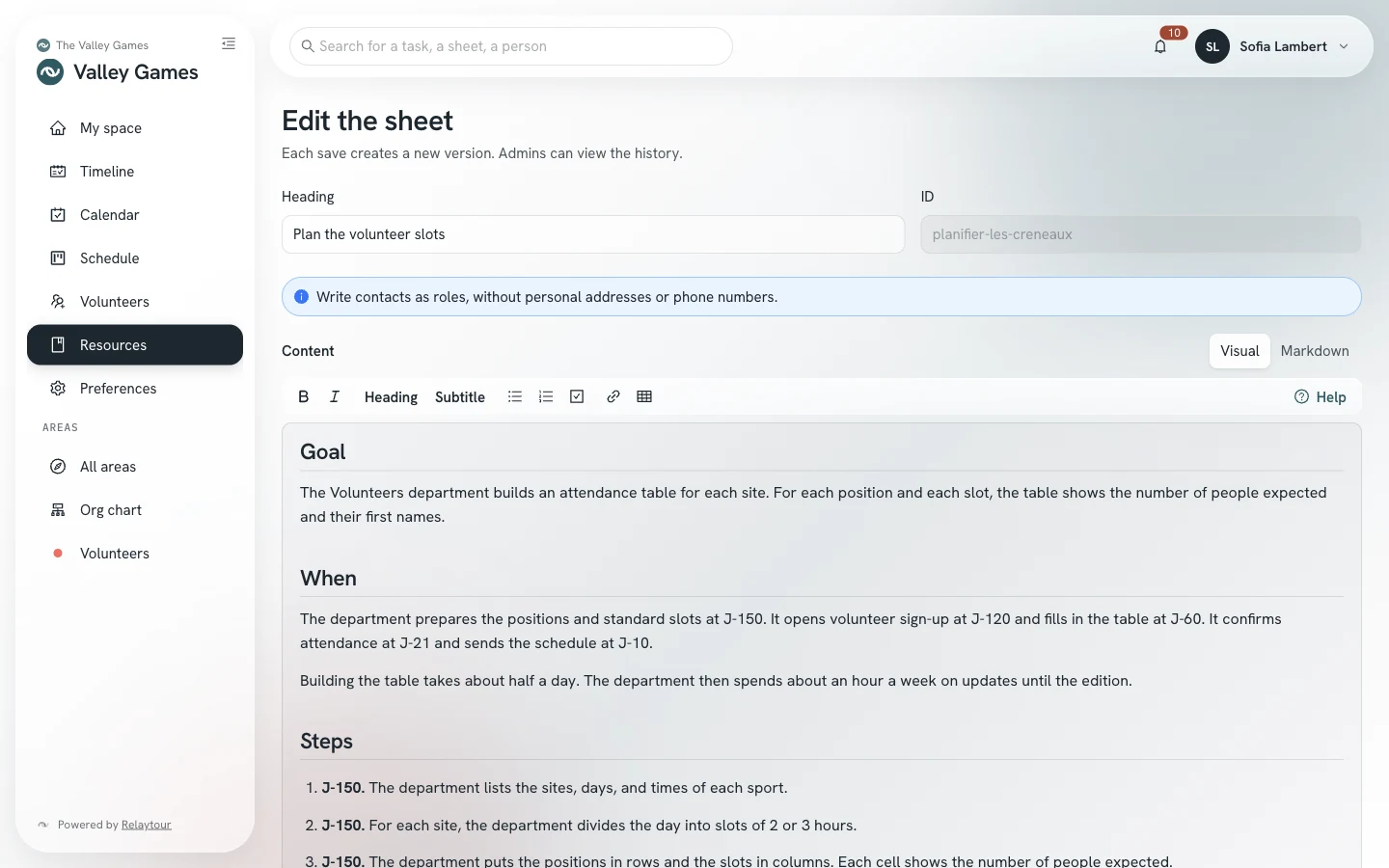
The Edit button on a sheet opens the editor in Visual mode: you write directly in the sheet as it is displayed. The Markdown mode shows the source text, with the symbols of this guide. Your browser remembers the mode you chose.
The editor keeps a draft in your browser. A page reloaded by mistake therefore does not lose your text.
No need to memorize
The formatting bar
The bar above the text formats your selection, in both modes. In Markdown mode, it writes the symbols for you. Pressing the same button a second time removes the formatting.
BoldItalicEmphasize the selection. In Markdown mode, with no selection, the button inserts an example to replace.
HeadingSubtitleTurn the cursor’s line into a section heading or a subheading.
Bulleted listNumbered listCheckboxesTurn each selected line into a list item. Another list button changes the list type.
LinkMake the selection the text of a link. In visual mode, the editor asks for the address. In Markdown mode, it selects the address, which you replace with yours.
TableAdd a two-column table below the cursor’s line.
HelpOpen this guide next to your text, without leaving the editor.
@Type an at sign: the editor suggests the activity’s areas and groups. Tab picks the first suggestion.
On a computer, three shortcuts exist: ⌘B or Ctrl+B for bold, ⌘I or Ctrl+I for italic, ⌘K or Ctrl+K for a link. ⌘Z or Ctrl+Z undoes a formatting change. In visual mode, a click on a checkbox checks or unchecks it.
The sheet editor and its formatting bar, on the sample organization.
Several areas
The “Also concerns” list
A sheet belongs to one area. It can also concern others: the coordinators of Logistics then read the Volunteers sheet on slots, without editing it.
Also concernsChoose, below the sheet text, areas and groups of the activity. A group also concerns the areas that will join it.
AddAccept, on save, the areas that the text mentions. A dismissed mention does not come back while you are writing.
Confirm the listConfirm a wide distribution: at least four areas, and more than half of the activity’s areas. If the sheet concerns the whole activity, a shared sheet is a better fit.
The page of each area in the list shows the sheet in its “Related sheets” panel, read-only. Its coordinators hide it when it is of no use to them. The coordinators’ user guide describes this panel.
Twelve topics
Sheet syntax
Each example shows the text to write, then how the sheet displays it. Sheets display neither images nor HTML code.
Paragraphs and line breaks
An empty line separates two paragraphs. Two consecutive lines with no empty line between them form a single paragraph.
A backslash (\) at the end of a line moves to the next line without starting a new paragraph.
You write
The gym opens at 8 a.m.
This line continues the previous sentence.

An empty line starts a new paragraph.\
This line starts below the previous one.
The sheet shows
The gym opens at 8 a.m.
This line continues the previous sentence.
An empty line starts a new paragraph.
This line starts below the previous one.
Headings
A heading starts with hash signs followed by a space. Two hash signs make a section heading, three make a subheading.
The sheet title already appears at the top of the page, so start your sections with two hash signs.
You write
## Before the day

### Equipment to reserve

The section text follows the heading.
The sheet shows
Before the day
Equipment to reserve
The section text follows the heading.
Bold, italic, and strikethrough
Two asterisks on each side make a passage bold. An underscore on each side makes it italic. Two tildes strike it through.
You write
The room closes **at 7 p.m. sharp**.
Remember to _sign the attendance sheet_.
The meeting is held ~~at the stadium~~ in the gym.
The sheet shows
The room closes at 7 p.m. sharp.
Remember to sign the attendance sheet.
The meeting is held at the stadium in the gym.
Lists
A bulleted list starts each line with a hyphen followed by a space. A numbered list starts each line with a number followed by a period.
Under a bullet, two spaces at the start of a line place the item in a sublist.
You write
- Room keys
- Bibs
  - 20 red
  - 20 blue

1. Open the gym
2. Set up the nets
3. Welcome the teams
The sheet shows
Room keys
Bibs
20 red
20 blue
Open the gym
Set up the nets
Welcome the teams
Checkboxes
A checkbox starts with a hyphen, then square brackets around a space. An x between the brackets checks the box.
The box is checked by editing the sheet, not by a click. A sheet checkbox does not create a task.
You write
- [x] Reserve the gym
- [ ] Order the medals
- [ ] Notify city hall
The sheet shows
Reserve the gym
Order the medals
Notify city hall
Links
A link puts its text in square brackets, then its address in parentheses. An address written on its own also becomes a link.
A link in a sheet opens in a new tab.
You write
See the [tournament rules](https://example.org/rules).

Directions: https://example.org/map
A vertical bar separates the columns. The second line, made of hyphens, separates the header from the rest of the table.
The columns do not need to be aligned in the text: the display aligns them.
You write
| Slot | Field | Role |
| --- | --- | --- |
| 9 a.m. | Field 1 | Refereeing |
| 2 p.m. | Field 2 | Welcome desk |
The sheet shows
Slot
Field
Role
9 a.m.
Field 1
Refereeing
2 p.m.
Field 2
Welcome desk
Callouts
A greater-than sign followed by a space puts the line in a callout. A callout highlights an instruction to remember.
You write
> Keys go back to the welcome desk before 7 p.m.
The sheet shows
Keys go back to the welcome desk before 7 p.m.
Divider line
Three hyphens alone on a line draw a divider line. An empty line must come before them: without it, the text above becomes a heading.
You write
End of the morning part.

---

Start of the afternoon.
The sheet shows
End of the morning part.
Start of the afternoon.
Text as written
Backticks around a text display it as written, in a monospaced font: a file name, a reference.
Three backticks on a line open a block of several lines, and three more close it.
You write
The file is called `schedule-2027.xlsx`.

```
Field 1: 9 a.m. - 12 p.m.
Field 2: 2 p.m. - 6 p.m.
```
The sheet shows
The file is called schedule-2027.xlsx.
Field 1: 9 a.m. - 12 p.m.
Field 2: 2 p.m. - 6 p.m.
Mentions
An at sign followed by an area’s identifier mentions it, for example @logistique. A mention @groupe: followed by a group’s key mentions the whole group.
A mention is displayed as a label. A group’s label lists its areas on hover or tap. In the editor, an at sign suggests the activity’s areas and groups.
A mention does not share the sheet. On save, the editor offers to add the mentioned areas to the “Also concerns” list.
You write
@logistique prepares the venues, and each @groupe:sport sends its schedules.
The sheet shows
Logistics prepares the venues, and each Sports sends its schedules.
Reserved characters
A backslash in front of a formatting character displays it as written: asterisk, underscore, hash sign, bracket.
An HTML tag is displayed as text. Sheets accept only the Markdown syntax of this guide.
You write
The reduced rate\* applies to people under 18.

\* On presentation of an ID.

<b>This tag stays text.</b>